SLA policies & targets
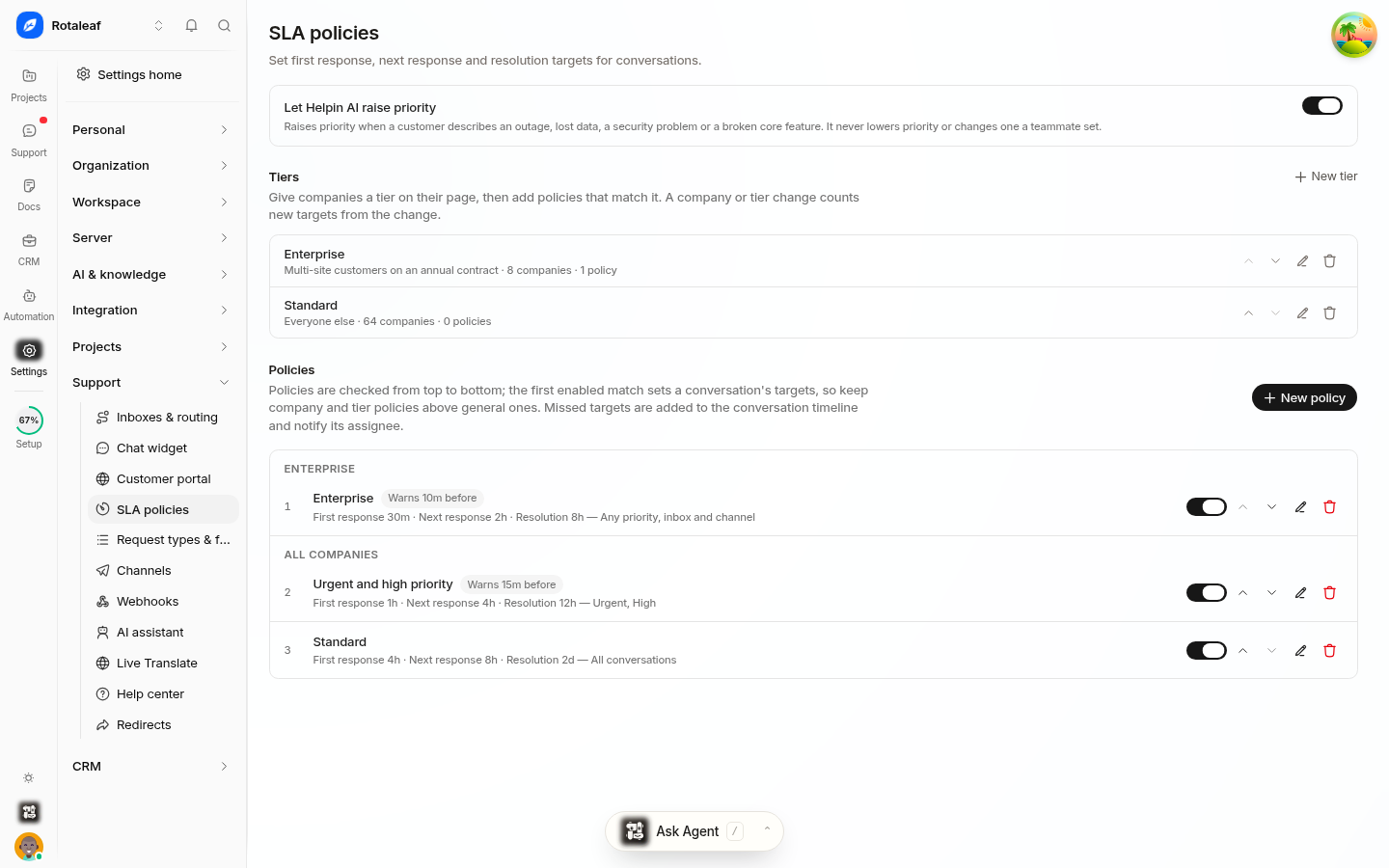
Service Level Agreement (SLA) policies establish clear response and resolution commitments across your customer conversations. In Helpin, SLA policies are configured workspace-wide under Settings -> Support -> SLA policies, ensuring consistent standards across every channel and inbox.
How SLA policies work
SLA policies operate as an ordered evaluation list. Each policy includes a name, an enabled toggle, specific match criteria, and defined response or resolution targets.
When a conversation arrives or updates, Helpin evaluates your enabled policies starting from the top of the list:
First match wins: The first enabled policy whose conditions match the conversation applies. Subsequent policies in the list are ignored.
Evaluation order matters: Place narrow, high-touch policies (such as VIP accounts or critical incident types) at the top of the list, and broad baseline policies at the bottom.
Reordering: You can reorder policies at any time to adjust which policy takes precedence.
Capacity: You can define up to 50 SLA policies per workspace.
Because policy evaluation stops at the first match, an empty or unconstrained policy at the top of your list would capture all incoming traffic. Always review policy order after adding or updating rules.
Match conditions
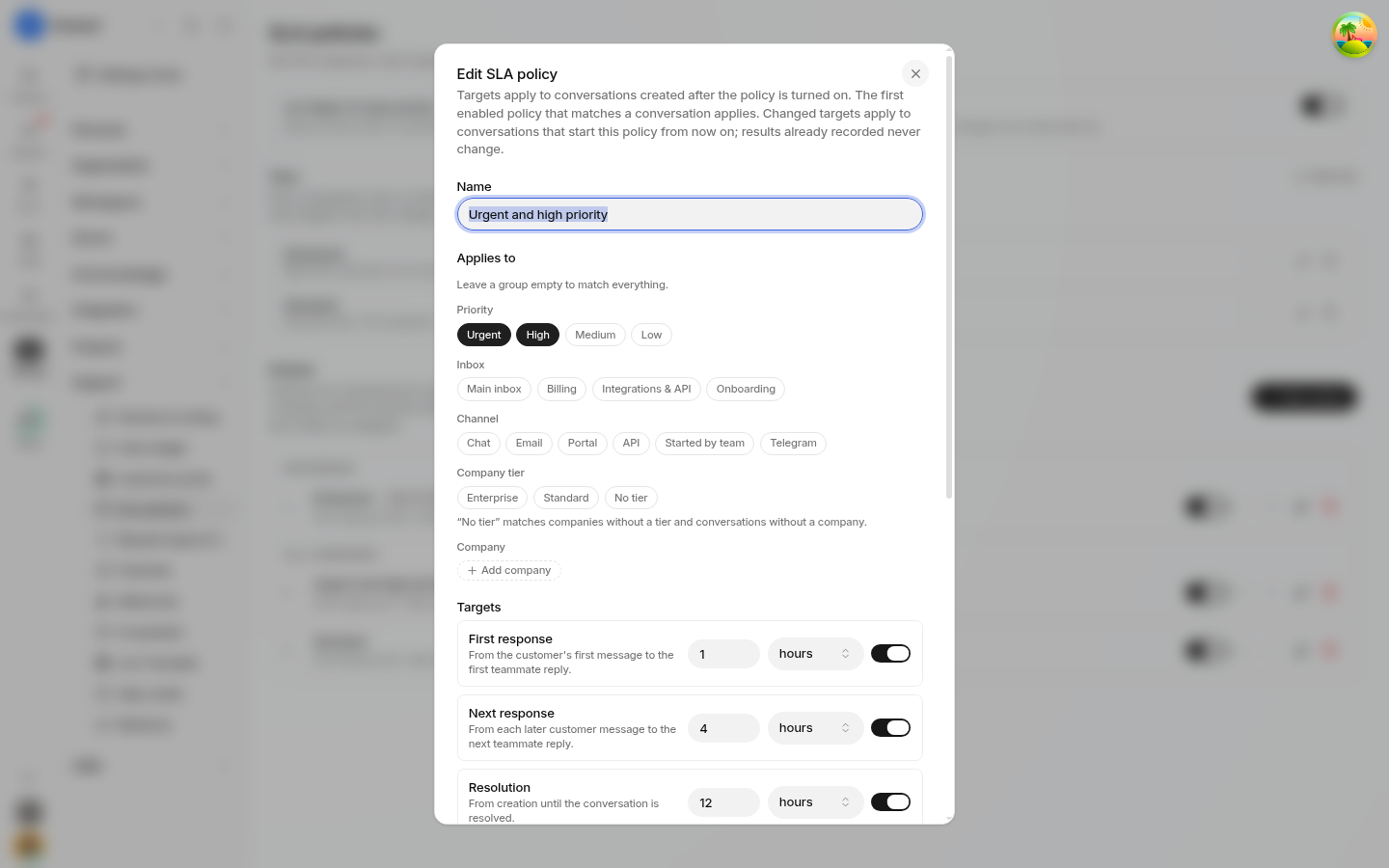
Match conditions determine which conversations fall under a policy. All conditions are optional. If you leave every condition empty, the policy matches every conversation in your workspace.
You can combine any of the following conditions:
Condition | Description | Special Values / Limits |
|---|---|---|
Priority | Matches conversations flagged as Low, Normal, High, or Urgent. | None |
Team inbox | Matches conversations routed to a specific team inbox. | Select |
Channel | Matches conversations originating from specific channels (e.g., email, live chat, Telegram). | None |
Request type | Matches conversations tagged with a specific custom request type. | Configured under Request types & fields. |
SLA tier | Matches based on the SLA tier assigned to the customer's company. | Select |
Specific companies | Matches conversations linked to specific companies. | Up to 50 named companies per policy. |
Target metrics and thresholds
Each policy supports three distinct targets. Each target is optional — turn it on with its own switch — and is entered as a number plus a unit (minutes, hours, or days):
First response time: The duration from when a customer initiates a conversation to when a teammate posts the first non-automated public reply.
Next response time: The duration between a customer's subsequent message and the teammate's next reply throughout the conversation lifecycle.
Resolution time: The total elapsed time from conversation creation until the conversation is marked as resolved.
Each target value must be between 1 minute and a maximum of 90 days (129,600 minutes).
Business hours calculation
By default, SLA targets run continuously on calendar time (24 hours a day, 7 days a week).
When you turn on the Business hours toggle on a policy, Helpin counts only the working hours defined for your workspace. If a customer writes in on a Friday evening and your business hours resume on Monday morning, the SLA clock does not consume time over the weekend. Workspace business hours schedules are managed under Settings -> Support -> Inboxes / routing settings.
Pausing while waiting
Enable the Pause while waiting toggle to prevent resolution targets from penalizing teammates when the ball is in the customer's court. When turned on, the resolution clock pauses whenever:
A conversation enters the
waitingstate (awaiting customer reply or external action).A conversation is actively snoozed.
Once the customer replies or the snooze duration expires, the conversation re-enters an open state and the resolution clock resumes. First response and next response clocks are not paused by this toggle, as they track active turnaround times.
Warnings and automated escalation
To help teams address conversations before they breach contractual commitments, policies provide configurable warning and escalation rules.
Warning lead time
Under Warn before, you can define a lead time in minutes. When an active target has this amount of time remaining, Helpin triggers a warning state:
The warning lead time must be shorter than every target configured on the policy.
Leaving the field empty disables policy-level warning triggers.
In addition to your custom warning threshold, the conversation inbox highlights targets as "due soon" whenever they enter a fixed 60-minute window before due time.
Escalation recipients
When a target enters a warning state or officially breaches, Helpin notifies designated stakeholders:
Additional teammates: Add specific teammate user IDs to receive notifications alongside the conversation assignee.
Customer Success owner: Enable the CS owner notification toggle to automatically alert the account's designated CS owner when high-value accounts face breaches.
Assign unassigned owner
If a conversation reaches its warning threshold while still unassigned, you can configure the policy to automatically assign the conversation to a designated teammate. This guarantees that unrouted or forgotten conversations receive an accountable owner before a breach occurs.
No back-dating rule
Helpin adheres to a strict forward-looking evaluation rule for SLAs:
A policy measures only conversations created after that policy was last enabled.
If an existing conversation begins matching a policy because its attributes changed (for example, priority was elevated or a request type was applied), targets are calculated from the timestamp of that change.
Enabling a new policy, reordering policies, or updating condition rules never retroactively marks older conversations as breached or recalculates historical compliance.
SLA tiers and company-specific targets
For organizations offering multi-tiered support contracts (such as Bronze, Silver, and Gold), Helpin provides built-in SLA tiers on the SLA policies page.
Managing SLA tiers
Tier limit: Create up to 20 SLA tiers per workspace.
Naming and order: Tier names must be unique across the workspace. Each tier has a display name, an optional description, and a defined display order.
Company association: A company record can carry at most one SLA tier.
Tier overview: The tier table shows the number of assigned companies and the number of active policies referencing each tier.
Per-company custom overrides
When an enterprise customer has custom contractual guarantees that differ from your standard tiers, you can define a custom per-company SLA directly on the company's profile. A custom company SLA takes precedence over workspace policy targets, applying the customer's specific response and resolution commitments whenever their teammates submit requests.
Teammate experience and visibility
Teammates see real-time SLA status throughout their daily workflow:
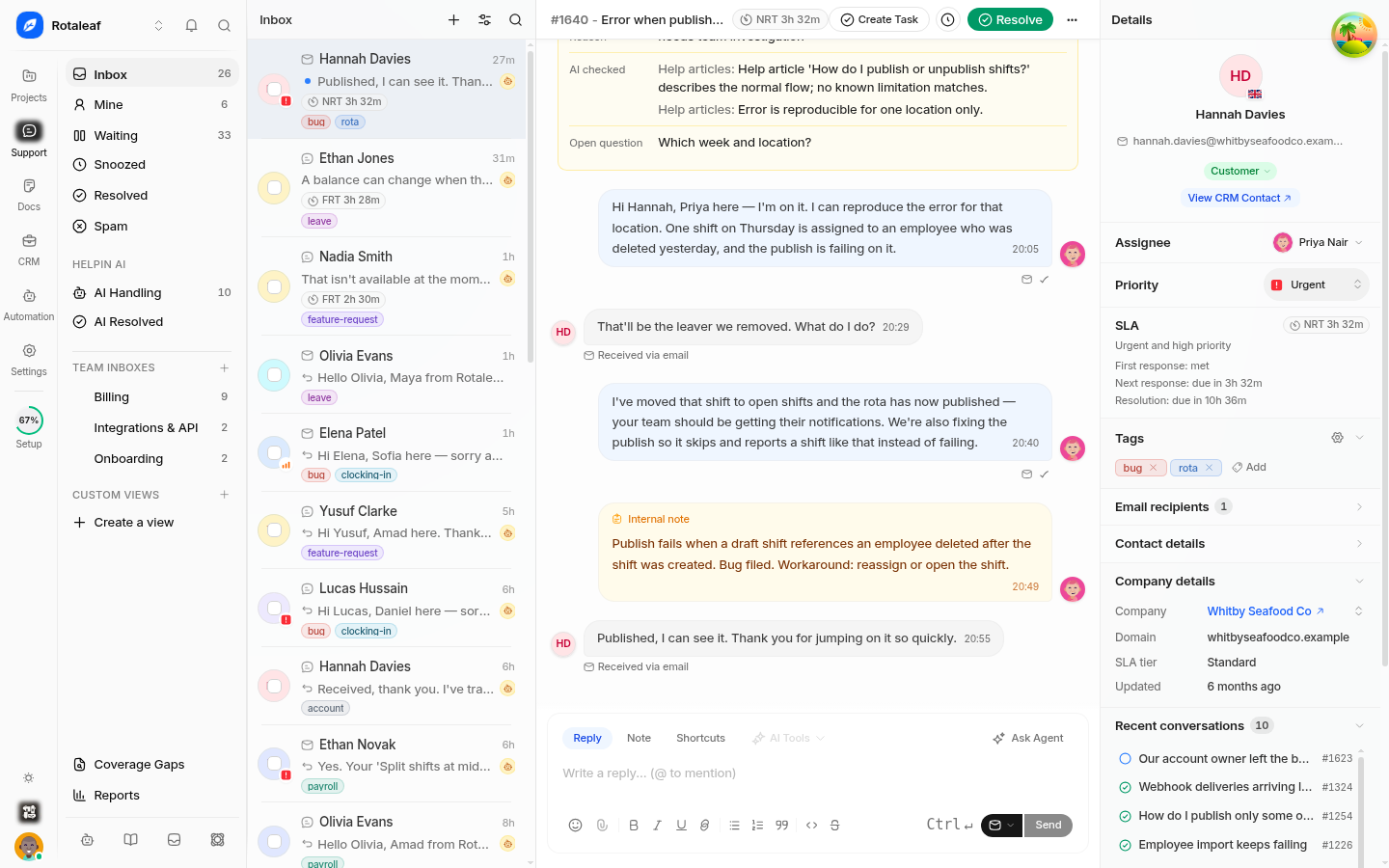
Conversation list: A dedicated SLA status badge appears on each conversation row, indicating whether targets are on track, due soon (within 1 hour or the configured warning window), or breached.
Conversation sidebar: The detail sidebar displays the active policy name, exact remaining time for each active target, and escalation assignments.
Message thread: Breadcrumbs and visual indicators show target status directly inline within the discussion.
Reports and webhooks
SLA metrics are tracked across the platform for ongoing operational analysis:
Reporting: Helpin Reports includes an SLA targets section displaying first response compliance, resolution compliance, breach volumes, and average time-to-breach broken down by inbox, tier, and policy.
Webhooks: Your external systems can listen to the
sla.warningandsla.breachedwebhook events to trigger external alerts, PagerDuty incidents, or executive escalation workflows.
Permissions
Access to SLA policies is governed by role-based permissions:
Support Read: Teammates can view SLA policies, tier definitions, and active target statuses on conversations.
Support Admin: Required to create, edit, reorder, or delete SLA policies and tiers, as well as assign SLA tiers or custom SLAs to company records.
Related pages
Was this article helpful?