Chat general settings
The Chat Widget settings page (Settings → Chat Widget) is the complete configuration surface for the customer-facing widget. Each section is collapsible, and a live preview reflects your changes.
See also: this page is a section-by-section map of the Chat Widget settings. For appearance and availability details (branding, colors, launcher, business hours) see Widget customization & preview.
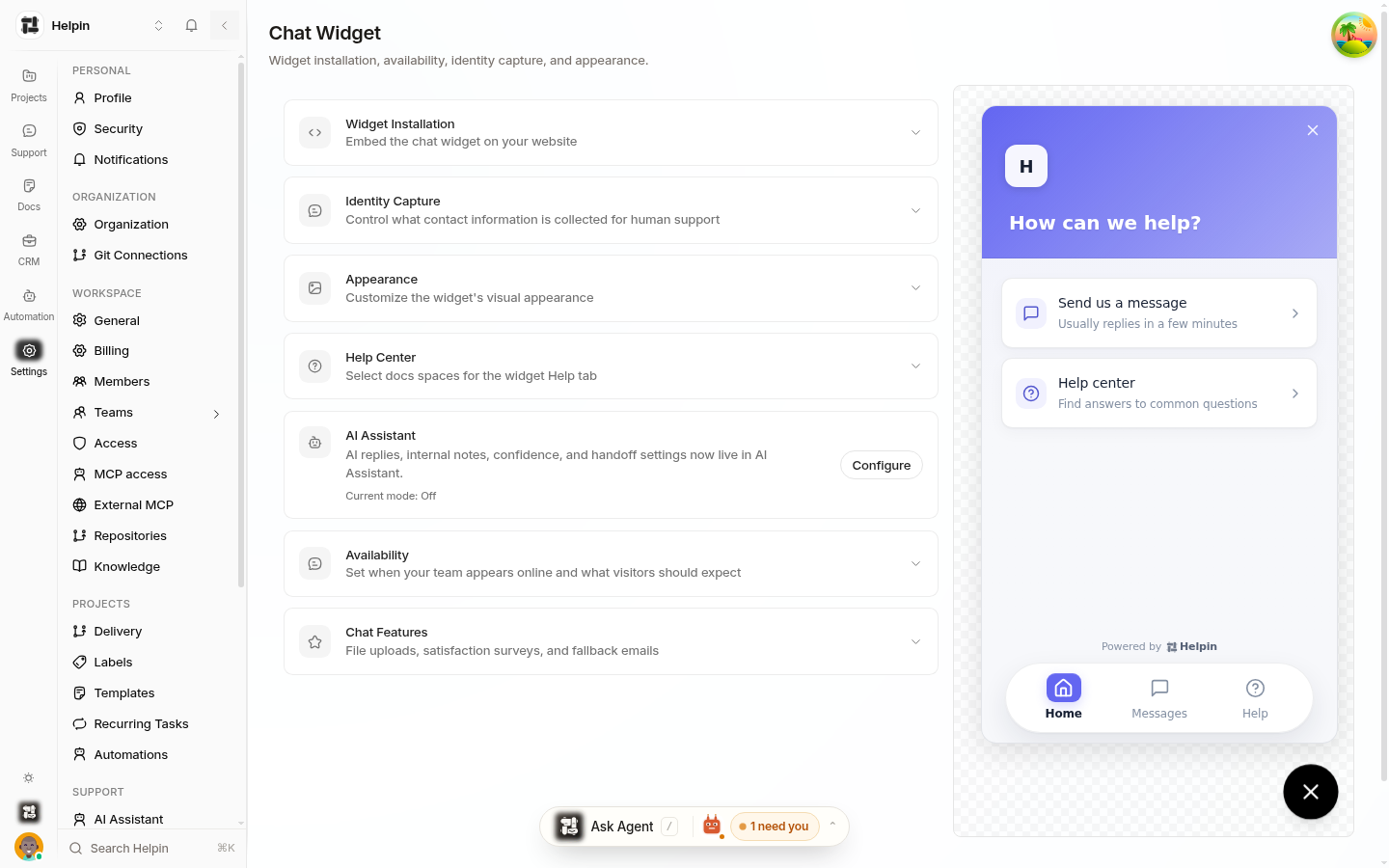
Widget Installation
Widget key — your public embed key, with copy and regenerate.
Installation method tabs — HTML/JS, React, Vue, Next.js snippets, each with Manual setup and an Install with AI prompt you can hand to a coding assistant.
See Embed the widget.
Identity Capture
Ask for email before human handoff — when visitors request a person, ask where to send replies.
Ask for phone number after email — collect phone too when enabled (requires email capture).
Require contact details for handoff — visitors must provide an email before requesting human support; disabled means they can continue without one.
Welcome message — the greeting shown when the widget opens.
These rules decide when identity capture prompts appear during chat. Identification also feeds CRM (see Identify visitors from the widget).
Appearance
Widget identity — display name and avatar customers see.
Logo — image at the top of the widget (512×512 recommended).
Colors — primary color, button color, button icon color; color scheme (System/Light/Dark).
Launcher — position (bottom right/left) and icon (chat bubble, question mark, help).
Show "Powered by Helpin" — footer branding (plan-dependent).
See Widget customization & preview.
Help Center
Choose which docs spaces appear in the widget's Help tab. Only external-capable spaces are selectable. See Linking knowledge sources.
AI Assistant (card)
A summary card showing the current AI mode with a Configure link to the full AI Assistant page (see Support AI settings).
Availability
Enable availability schedule — business hours for human-team availability.
Timezone and per-day schedule.
Outside Hours Message — shown when offline.
Reply expectations — the reply-time promise during business hours (few minutes / few hours / within a day / custom minutes) with preview.
Outage / maintenance banner — an optional temporary notice shown across the widget.
Chat Features
File uploads — allow visitor attachments (max 10 MB).
Email notifications — email fallback for visitors who disconnect: from name, delay before sending (seconds after latest team reply), send window (minutes before a reply is too old to email).
See Email channel & email fallback for offline visitors.
Saving
Changes save with the page's save control; the preview updates as you edit, so appearance and copy can be verified before saving.
Was this article helpful?