Customer portal
The Helpin customer portal provides an external, branded site where your customers can submit new requests, monitor ongoing tickets, search your knowledge base, and track team-level issues without opening the chat widget. Each workspace hosts its own portal at a dedicated path: /portal/<workspace-slug>.
This guide outlines portal structure, access controls, request submission mechanics, team visibility, and inbox interactions.
Customer portal architecture
The customer portal acts as an asynchronous self-service channel alongside your chat widget and email mailboxes. It consists of seven distinct public and authenticated views:
Page | Path / Identifier | Description | Access Level |
|---|---|---|---|
Portal home |
| Overview landing page with search, quick links, and links to submit or view requests. | Public / Authenticated |
New-request form |
| Intake form displaying configured request types and required conversation fields. | Configurable (Public or Signed-in) |
Request detail |
| Timeline view of an individual request identified by a human-readable request reference. | Signed-in requester / company member |
Company team page |
| Organization overview displaying all open and historical requests submitted across the company. | Signed-in company member |
Help & search |
| Searchable knowledge base powered by published articles and the automated help assistant. | Public / Authenticated |
Sign-in |
| Email entry form initiating magic-link authentication. | Public |
Auth callback |
| Callback destination validating the magic-link token and establishing the session. | Public |
Sign-in gates any page that exposes ticket histories or customer records. Unauthenticated visitors can view the portal home and help pages, but must authenticate to view their own submitted tickets or company-wide requests.
Access control and authentication
You manage access rules in Settings -> Support -> Customer portal.
Authentication relies on email-based magic links rather than static passwords:
The customer enters their work email address on the sign-in page.
Helpin generates a single-use authentication callback link sent directly to that address.
Upon clicking the callback link, the customer lands on
/portal/<workspace-slug>/auth/callback, which verifies the token and creates an authenticated browser session.
Submission restrictions
In Settings -> Support -> Customer portal, you configure whether anonymous visitors may submit requests:
Require sign-in for new requests: Visitors must authenticate before the new-request form renders. Use this mode if you restrict support to established customers or need guaranteed requester verification before ingestion.
Allow anonymous submissions: Anyone can complete the new-request form. If an unauthenticated user submits a ticket, Helpin creates the contact record using the submitted email address. To view subsequent ticket replies and status updates in the portal, the customer must sign in using that same email address.
Request intake and custom fields
The portal intake form mirrors your operational triage requirements rather than relying on unstructured text boxes.
When a user visits the new-request form, Helpin dynamically renders fields based on the configurations set in Settings -> Support -> Request types & fields:
Request types: You define specific categories (for example, "Billing inquiry", "Technical bug", or "Feature request"). Choosing a request type displays the custom fields associated with that type.
Conversation fields: Form fields map directly to your conversation attributes, including text inputs, dropdown selections, checkboxes, and numeric fields.
Validation: Fields marked as mandatory in your request type configuration must be completed before the portal accepts the submission.
When a customer submits the form, Helpin creates a new conversation in your inbox. Because the request enters the inbox as a first-class conversation, all existing platform capabilities evaluate immediately:
Routing & triage: Automated routing rules evaluate the conversation fields and assign the conversation to the designated inbox or queue.
Service Level Agreements: SLA tracking starts counting immediately against first response and resolution targets.
AI features: AI categorization, suggested replies, and knowledge base lookups process the incoming ticket context.
Company visibility and domain-based auto-join
For business-to-business support workflows, customers frequently need visibility into issues raised by colleagues across their organization. The customer portal handles this through company mapping.
CRM association
Helpin links portal accounts to company records stored in your CRM:
When an authenticated customer logs into the portal, Helpin matches the contact's email address against contacts in your CRM.
Contacts associated with a CRM company automatically inherit permissions to view the company team page.
On the company team page, users can see tickets raised by any contact belonging to that company, track open issues, review resolutions, and avoid duplicate filings.
Domain-based auto-join
To streamline onboarding without manual contact creation, enable domain-based auto-join:
In your CRM company settings, register and verify the company's official corporate email domains (for example,
example.com).When a new customer signs in with an email matching a verified domain, Helpin automatically associates the contact record with that company and grants access to the company's shared portal tickets.
Per-inbox portal roles
Portal access and capabilities are managed per inbox. Within inbox settings, support administrators can:
Grant or revoke customer portal access for individual contacts or entire companies.
Assign portal roles that dictate whether an individual can only view their own submitted tickets or view all company tickets across that inbox.
Inbox integration and agent experience
Support teammates manage portal requests directly inside the Helpin inbox:
Conversation source: Portal conversations display a distinct portal channel badge on the conversation header and timeline.
Sidebar context: The conversation sidebar displays the customer's portal context, including their verified organization and a direct link to open the customer's portal record.
Public vs. internal replies: Customer-facing messages entered in the reply composer appear instantly on the request detail page in the portal. Internal notes remain hidden from the customer view.
Anonymized conversations: If a conversation is marked as anonymized for data privacy or compliance reasons, Helpin suppresses it from the customer portal. The customer cannot see or search anonymized requests on their personal request page or company team page.
Reporting and analytics
Portal activity feeds directly into your workspace performance tracking. In Support -> Reports, the Portal self-service section provides visibility into portal usage:
Search query volume and knowledge base views on
/portal/<workspace-slug>/help.Total requests submitted through the portal intake form compared to chat and email channels.
Company team page adoption across active customer accounts.
All portal metrics honor the selected global date range and can be exported to CSV alongside inbox metrics.
Permissions
Managing portal configuration requires specific access rights:
Support admin: Required to configure portal settings in Settings -> Support -> Customer portal, modify request intake fields in Settings -> Support -> Request types & fields, and adjust per-inbox portal permissions.
Support edit / Support read: Teammates with standard support permissions can view portal-originated conversations, reply to customers, and inspect customer portal links in the inbox sidebar, but cannot alter portal domain settings or authentication rules.
Related pages
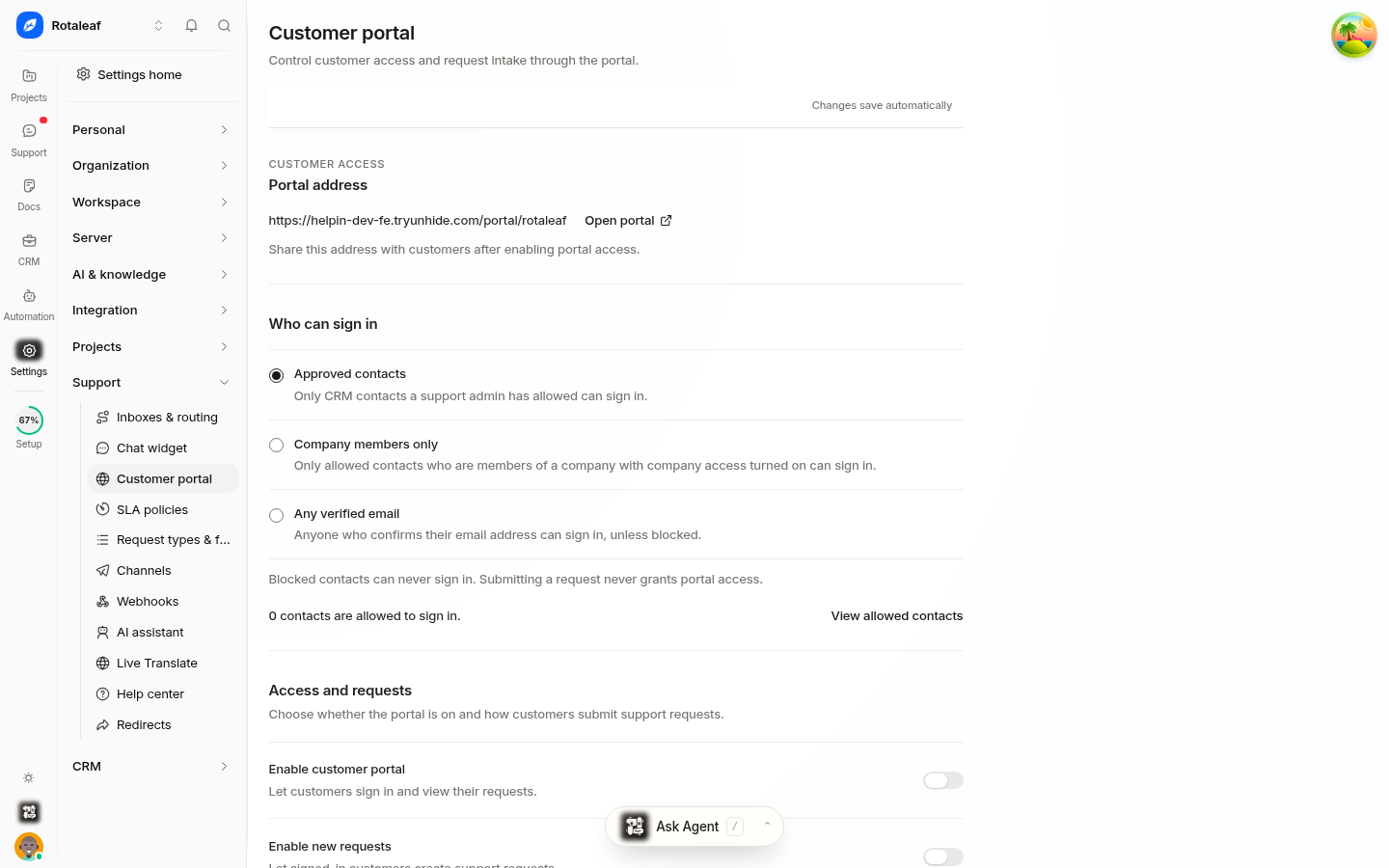
Who can sign in
Three sign-in policies, chosen in settings:
Approved contacts — only CRM contacts a support admin has explicitly allowed can sign in. The most restrictive option, and the one to use when portal access is a contract term.
Company members only — only allowed contacts who belong to a company with company access turned on can sign in. Good for B2B, where the company is the unit of access.
Any verified email — anyone who confirms their email address can sign in unless blocked. The most open option, useful for self-serve products.
A View allowed contacts link on the same page lists who currently has access.
Access and request controls
Enable customer portal — the master switch for the public portal.
Enable new requests — whether customers can raise new requests, as opposed to only reading existing ones.
Allow requests without sign-in — anonymous intake. Unavailable while the portal is off, and best paired with the Approved contacts policy rather than Any verified email.
Show when to expect a reply — surfaces your response expectation on the request page.
Who requesters can copy — controls whether requesters may add CCs, and who they may copy.
Help articles and the portal assistant
Offer your Help Center to customers — the help/search page inside the portal.
Ask AI help assistant — lets customers ask the assistant directly on the portal.
Portal AI response mode and Portal support agent — choose whether the portal answers using AI at all, and which agent handles it. The portal can therefore run with no AI, AI suggestions only, or full answering, independently of the chat widget.
Portal address
The portal lives at a per-workspace address, shown at the top of settings with an Open portal link so you can check what customers see.
Was this article helpful?