Inbox overview
The Support Inbox is where your team's customer conversations live. It is a conversation-first workspace: you pick a conversation from a queue, read the thread, and act — reply, resolve, route, or hand off — without ever leaving the page.
The three-pane layout
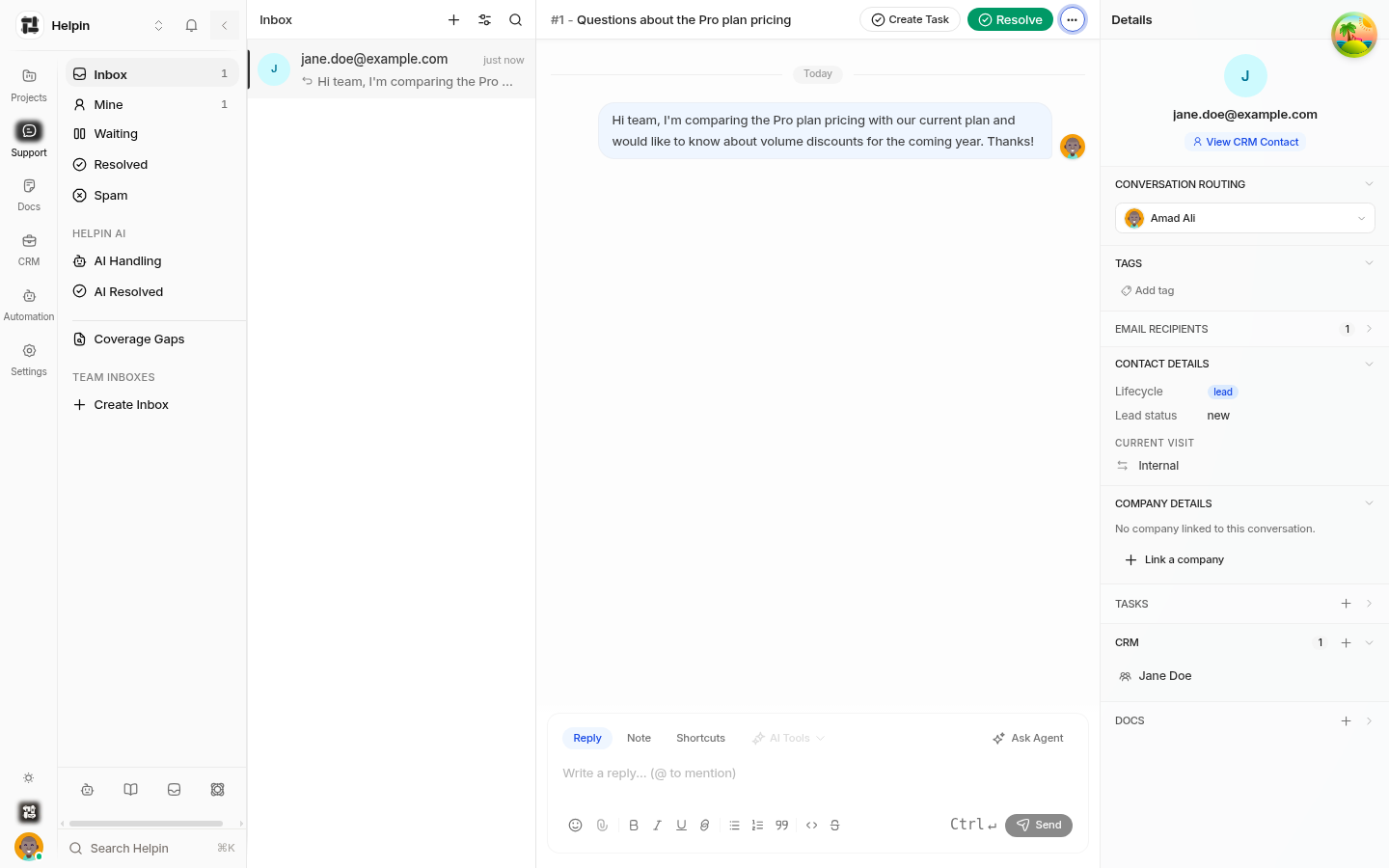
The inbox has three working areas:
Left sidebar — navigation between built-in views (Inbox, Mine, Waiting, Resolved, Spam, AI Handling, AI Resolved, Coverage Gaps), your team inboxes, and quick filters with unread counts.
Conversation list — the queue of conversations matching the selected view, with the newest activity first.
Conversation view — the message thread plus the reply composer on the left, and the customer Details panel on the right.
Built-in views
The sidebar always shows these views, each with an unread count:
View | What it shows |
|---|---|
Inbox | Every conversation assigned to your team that is open or waiting on the customer. |
Mine | Conversations you are assigned to, that mention you, or that you opened — that still need action from you. |
Waiting | Conversations where the last word belongs to you and the customer has not yet replied. |
Resolved | Conversations closed by a human teammate. |
Spam | Conversations marked as spam. |
AI Handling | Conversations the AI support agent is actively working on. |
AI Resolved | Conversations the AI agent resolved on its own. |
Coverage Gaps | Topics where the AI could not resolve conversations — a signal your docs may be missing something. |
Inbox, Mine, and Waiting show human-side work. AI Handling and AI Resolved show what the AI agent is doing. Team inboxes appear below these views, and the counts update in real time.
Working a conversation
Select a conversation in the list. The thread opens with the full message history.
Read the conversation and any internal notes. Customer messages show their channel (chat or email) and timestamps.
Reply in the composer, or switch to Note to leave an internal note only teammates can see.
Use the Details panel on the right to check the customer, routing, tags, email recipients, linked tasks, CRM records, and docs.
When the issue is handled, click Resolve. The conversation moves to Resolved (and reappears if the customer replies).
Creating conversations
You can start conversations on behalf of customers:
Click New conversation at the top of the list.
Enter the customer's email (existing contacts are suggested) and add Cc/Bcc recipients if needed.
Choose a channel — Email sends from your workspace sender address; Chat conversations appear in the same thread model.
Write a subject and message, optionally add tags, and send.
The Create test conversation option on an empty inbox generates a sample conversation so you can try the workflow safely.
Search and filters
Search conversations finds matches across subjects, message content, and customer emails, sorted by relevance.
Conversation filters narrow the current view by state (Open, Waiting on customer, Resolved, Spam), assignment, tags, mailbox, and AI state. Filters are reflected in the page URL, so a filtered view can be bookmarked or shared.
Empty inbox?
When no conversations match, the list offers two shortcuts:
Install widget — jump to widget setup so customers can start conversations.
Create test conversation — generate a sample conversation to explore the interface.
Related pages
Conversation list & statuses — how unread counts and state badges are computed.
Conversation lifecycle states — the states a conversation moves through.
Reply composer — shortcuts, attachments, and AI tools while replying.
Customer profile drawer — everything in the Details panel.
Was this article helpful?