Request types & conversation fields
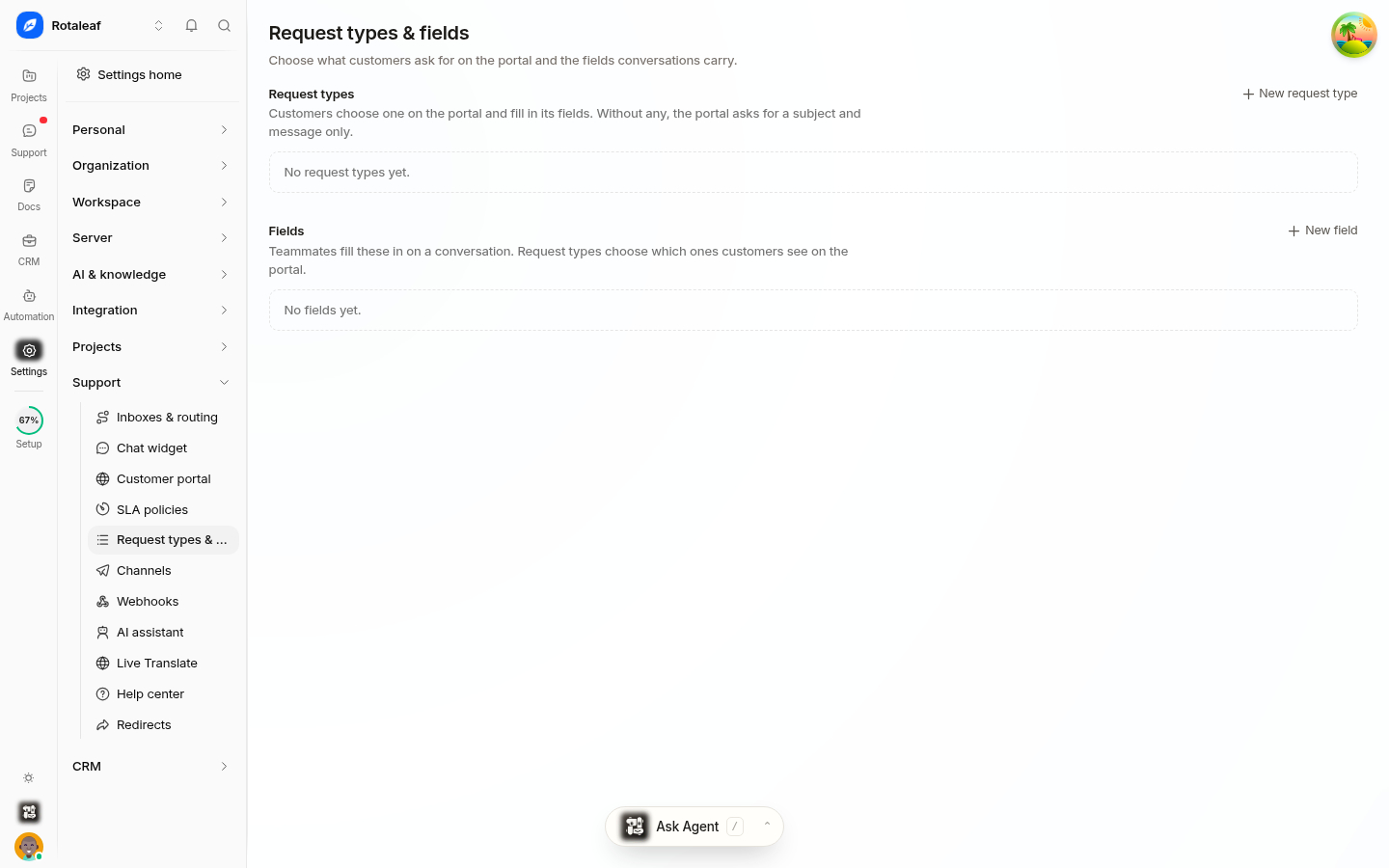
Categorizing incoming requests and collecting structured context are essential for running a scalable support operation. Helpin manages these requirements through two unified features located under Settings -> Support -> Request types & fields: request types and custom conversation fields.
Together, these controls determine what choices customers see when submitting tickets through the customer portal, what metadata teammates can log during triage, and how automated routing and SLA rules evaluate conversations.
Understanding request types and conversation fields
While configured on the same management screen, request types and conversation fields serve distinct roles:
Request types represent the overarching category of a customer's inquiry (for example, "Billing Inquiry", "Bug Report", "Feature Request", or "Account Access"). They define the options shown to customers when starting a new conversation in the customer portal.
Conversation fields are discrete custom attributes attached directly to the conversation object (for example, "Product Area", "Reproduction Steps", or "Subscription Tier"). They store structured data collected directly from end users or populated by support teammates during triage.
Both request types and conversation fields are workspace-wide configurations that apply across all team inboxes and communication channels.
Managing request types
Request types give structure to incoming requests and help customers direct their issue to the right team from the start.
Creating and configuring request types
When you create a request type, you define:
Name: The customer-facing and agent-facing label for the request category.
Description: Guidance displayed on the customer portal form helping users select the appropriate type.
Display Order: The position of the request type in the dropdown or selector list on the portal.
You can edit existing request types at any time to refine their display text or update instructions.
Portal presentation and submission forms
In the customer portal, request types appear on the initial submission form. When a user selects a request type, the portal displays any associated input prompts, allowing your team to collect relevant information before an agent begins investigation.
Archiving and restoring request types
When a category is no longer relevant—such as an event-specific inquiry or a retired product line—you can archive the request type rather than deleting it:
Historical integrity: Archiving a request type preserves that label on all existing historical conversations and reporting dashboards.
Portal availability: Archived request types are immediately removed from the customer portal and cannot be selected by customers submitting new requests.
Restoration: If you need to reinstate an archived category, you can restore it with a single click, instantly returning it to active status and portal forms.
Custom conversation fields
Custom conversation fields allow you to track operational data points specific to your organization's workflows. Fields are attached directly to the Helpin conversation record.
Field configuration and data types
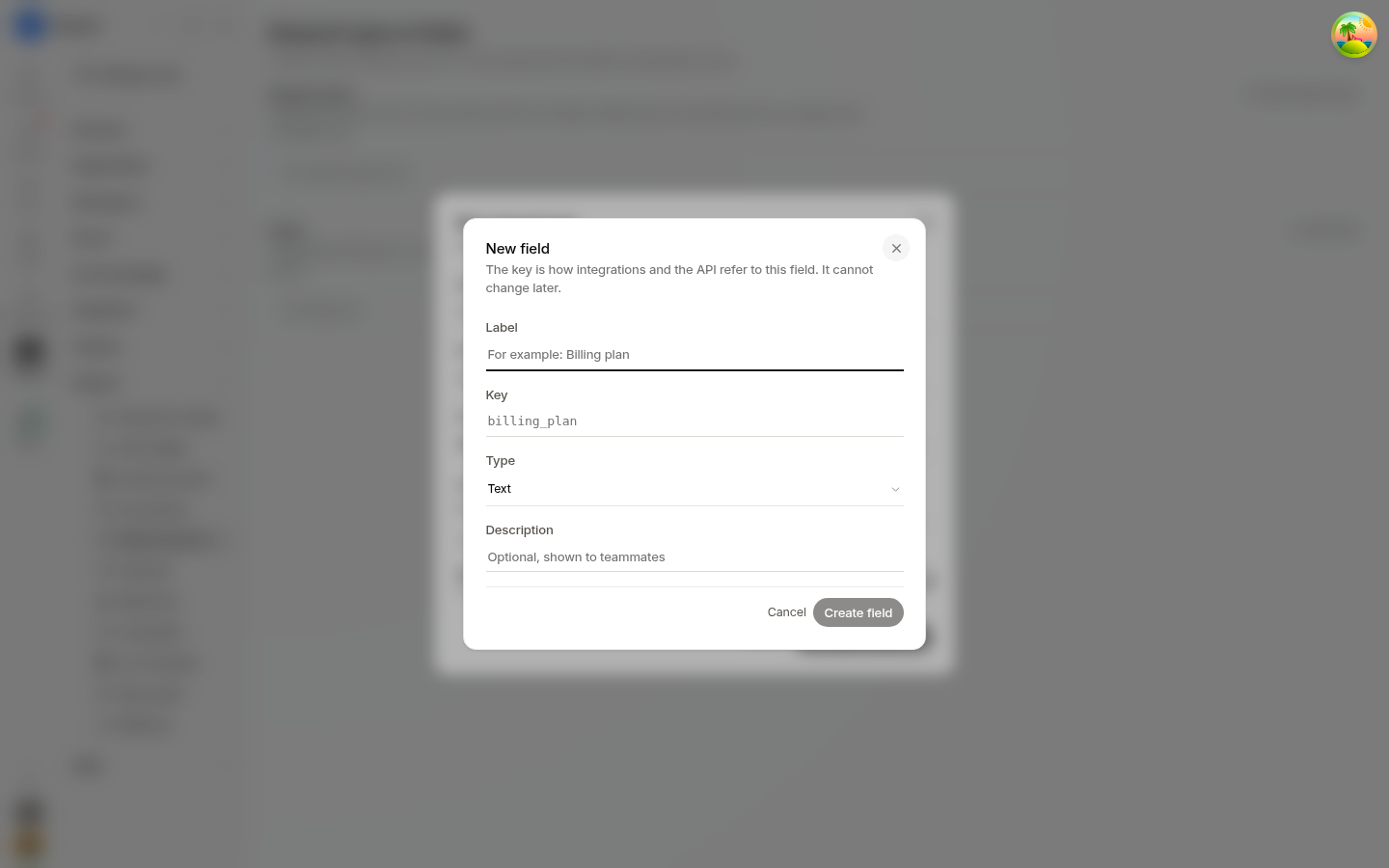
When defining custom conversation fields, administrators specify the field label, key, description, and data type. Supported field data types allow you to standardize customer inputs:
Field Type | Best Used For | Example Use Case |
|---|---|---|
Single-line text | Brief, unconstrained text entries. | Order number, transaction ID. |
Multi-line text | Extended descriptions or narrative responses. | Reproduction steps, error details. |
Dropdown / Select | Controlled lists with mutually exclusive options. | Affected environment (Production, Staging). |
Checkbox / Boolean | Binary yes/no confirmations. | Urgent blocker, security impact. |
Number | Quantitative numerical measurements. | Number of affected seats, monetary amount. |
Date | Specific calendar dates. | Incident date, contract renewal target. |
Data collection touchpoints
Custom conversation fields collect data through multiple channels:
Customer Portal: Fields mapped to the new request form appear for customers to fill out during initial submission.
Chat Widget: Specific fields can be presented during intake flows within the embedded chat widget.
Agent Sidebar: Teammates can view, add, or modify conversation fields directly in the conversation detail pane during active triage or resolution.
Teammate workflow in the conversation inbox
Support teammates interact with request types and conversation fields continuously throughout a conversation's lifecycle:
Updating fields: Teammates can review details submitted by the customer and edit or enrich fields in real time from the conversation sidebar as new information emerges.
Adjusting request types: If a customer selects an incorrect category upon submission (for example, marking a billing question as a technical bug), teammates can reassign the conversation to the correct request type directly from the details panel.
Interaction with routing and SLA policies
Request types and conversation fields do more than organize records; they act as primary signals for automated triage and compliance tracking:
SLA policy matching
SLA policies can evaluate conversation request types as a match condition. For example, you might maintain a strict 15-minute first response target for "Critical System Outages" and a standard 4-hour target for "General Inquiries".
Because Helpin evaluates SLA policies dynamically:
When a teammate changes a conversation's request type, Helpin re-evaluates the workspace's ordered SLA policies.
If the conversation now matches a different policy, the new policy's targets take effect from the moment the change occurs.
Forward-looking SLA calculations ensure historical metrics remain accurate without retroactively flagging conversations as breached.
Conversation triage and inbox routing
Automated routing rules can inspect request types and custom field values upon creation. Based on these attributes, Helpin can route conversations directly to specialized team inboxes (such as Tier 2 Support, Billing, or Security Operations) without manual intervention.
Permissions
Access to request types and conversation fields is governed by your workspace role:
Support Read: Teammates can view available request types and conversation fields, filter inboxes by them, and update field values on individual conversations.
Support Admin: Required to create, edit, reorder, archive, or restore request types, as well as define, update, or remove custom conversation fields.
Related pages
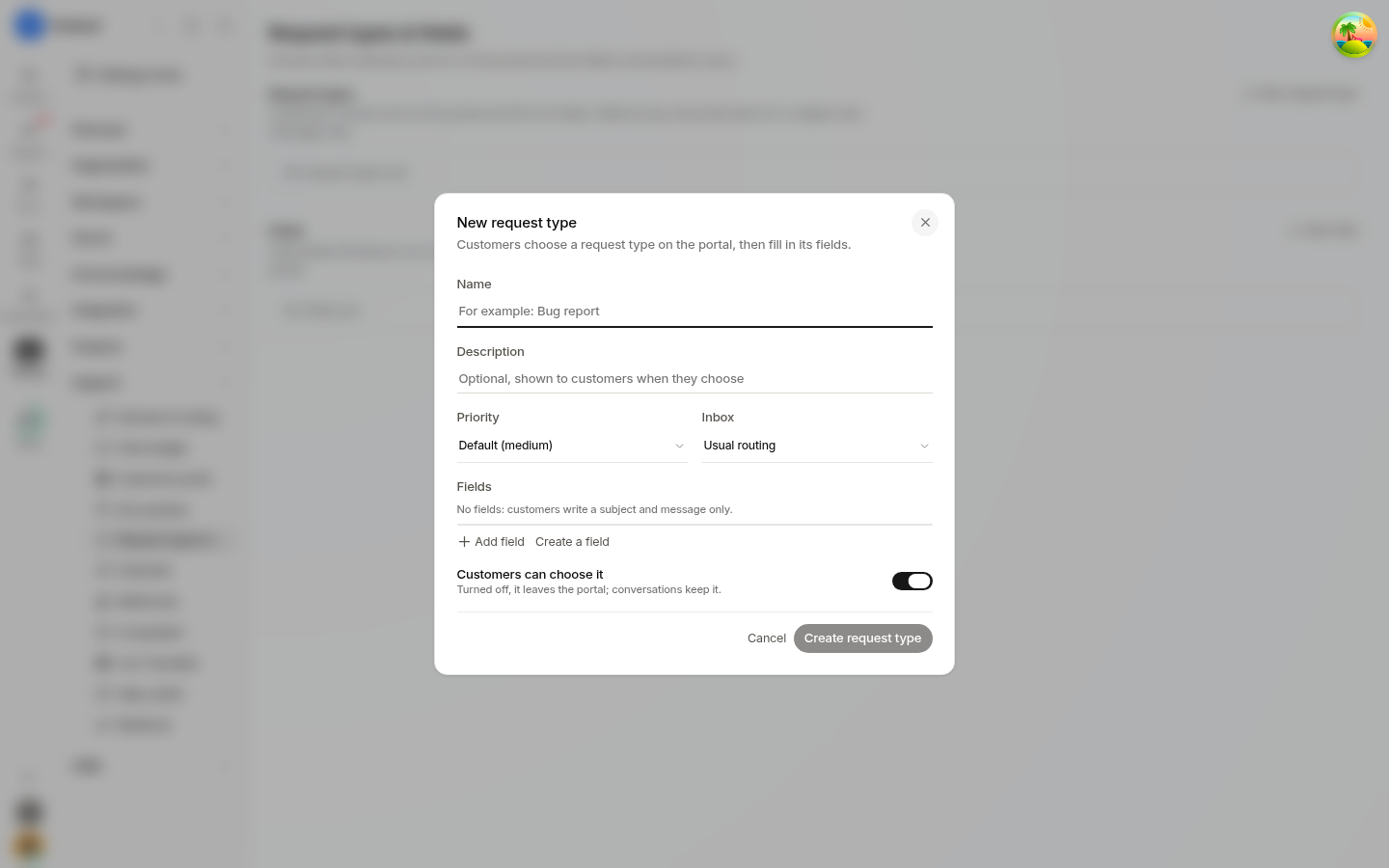
What a request type carries
A request type is not just a label. When you create one you also set:
Name and description — what the customer sees on the portal form.
Default priority — the priority conversations of this type start with, so an urgent type arrives already urgent.
Inbox — the inbox conversations of this type go to by default, independently of routing rules.
Its own fields — a request type can require fields that other types do not, so the portal form matches what you need for that kind of request.
A customer visibility switch — whether customers can choose this type on the portal at all. Turn it off to keep a type for internal use without removing it from historical conversations.
Was this article helpful?