Channels (Telegram and messaging apps)
Helpin allows your support team to meet customers directly on their preferred messaging apps alongside email and web chat. Under Settings -> Support -> Channels, you can connect external messaging integrations—such as Telegram bots—so customer messages flow seamlessly into your Helpin support workspace.
Connecting a messaging channel brings external conversations into your standard inbox views, routing pipelines, and SLA tracking mechanisms with zero friction for your support agents.
Telegram bot integration overview
The Telegram integration connects a designated Telegram bot to Helpin. When customers send direct messages to your bot on Telegram, Helpin automatically creates support conversations in your designated team inbox. Agents reply directly from Helpin's standard reply composer, and their responses are instantly delivered back to the customer's Telegram chat.
Key characteristics of the Telegram channel include:
Single bot connection: Helpin supports one active Telegram bot connection per workspace.
Unified inbox experience: Teammates work inside Helpin without needing Telegram accounts, desktop apps, or phone numbers.
Full conversational history: Incoming text, images, and attachments are synchronized directly into the conversation timeline.
Connecting your Telegram bot
Setting up Telegram requires creating a bot on Telegram and pasting its API authentication token into Helpin.
Step 1: Create a bot with BotFather
Open the Telegram app on your computer or mobile device.
Search for the verified
@BotFatheraccount (look for the official blue verification checkmark) and start a chat.Send the command
/newbot.Follow BotFather's prompts to choose a friendly display name (e.g., "Acme Support") and a unique bot username ending in
bot(e.g.,AcmeSupportBot).Once created, BotFather generates an HTTP API token (a string looking like
123456789:ABCdefGhIJKlmNoPQRsTUVwxyZ). Copy this token securely.
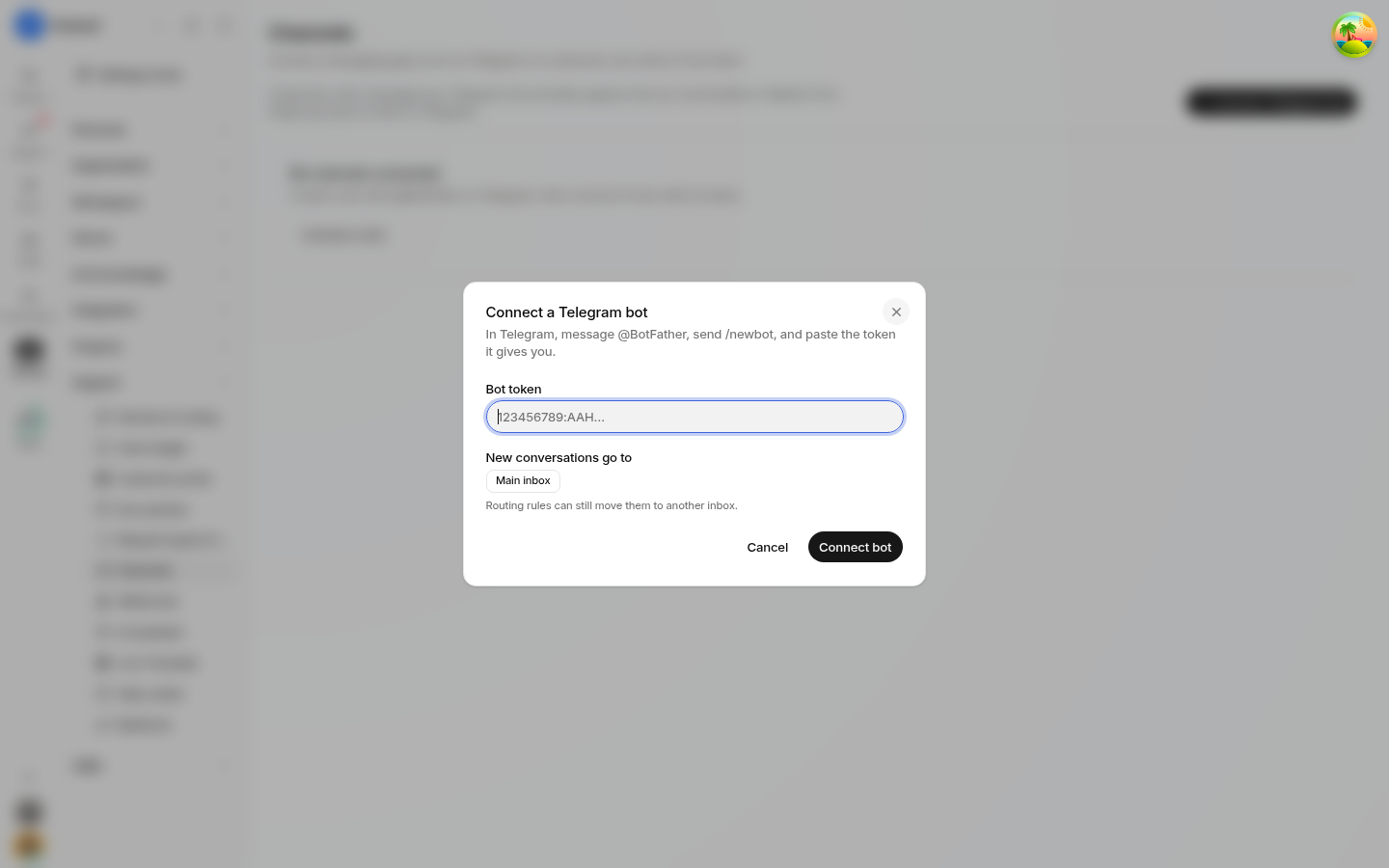
Step 2: Connect the bot in Helpin
In Helpin, navigate to Settings -> Support -> Channels.
Locate the Telegram channel section and click Connect.
Paste the API authentication token obtained from BotFather into the token field.
Select the default Team inbox where incoming Telegram conversations should land (for example, General Support or Tier 1).
Click Save and connect.
Helpin verifies the token with Telegram's API, sets up the necessary webhook endpoints, and establishes the active connection.
Managing the connection
Once configured, the Channels page provides direct controls to manage the state of your integration:
Connect: Establishes a new link using an API token from BotFather.
Reconnect: Allows you to refresh the webhook registration or update an existing token if credentials change.
Disconnect: Severes the link between Helpin and your Telegram bot. When disconnected, incoming messages to your Telegram bot will no longer generate conversations in Helpin. Historical conversations previously imported from Telegram remain intact in your inbox archives.
Delivery health and monitoring
To ensure critical customer inquiries never go unnoticed due to external connectivity failures, Helpin continuously tracks the delivery health of your messaging connections directly on the Channels page.
Connection health indicators
The channel interface surfaces real-time delivery status:
Delivery health status: Monitors whether incoming and outgoing messages are transmitting smoothly between Helpin and Telegram's infrastructure.
Failed deliveries: Surfaces outgoing agent messages that failed to deliver to the recipient (e.g., if a user blocked the bot or Telegram encountered network errors).
Unconfirmed deliveries: Tracks sent messages awaiting delivery confirmation from Telegram's servers.
Reauthorization alerts: If your bot token is revoked, regenerated in BotFather, or invalidated by Telegram, Helpin flags the connection with a
Needs Reauthorizationwarning. When this appears, an administrator must update the bot token using the Reconnect flow to restore message delivery.
Inbox routing, triage, and SLA behavior
Once connected, Telegram conversations operate identically to traditional email or web chat conversations across your support infrastructure:
Inbox triage and assignment
Incoming Telegram messages automatically arrive in the team inbox designated during setup. From there:
Automated routing rules can evaluate the channel as
Telegramand route messages to specific agents or groups.Agents can assign, snooze, tag, change priority, or hand off conversations using standard inbox actions.
Teammates can utilize canned responses and the rich text composer to deliver formatted replies directly back into the customer's Telegram chat.
SLA policy integration
SLA policies can explicitly target or include the Telegram channel:
When configuring match conditions under Settings -> Support -> SLA policies, select
Telegramunder the Channel filter.This enables you to establish specialized, faster first response commitments tailored to conversational instant messaging (such as a 5-minute first response target) while maintaining standard targets for email channels.
Telegram conversations participate in normal business hours calculations, warning windows, breach alerts, and escalation assignments.
Permissions
Managing messaging channels requires administrative authority:
Support Admin: Required to connect, reconnect, disconnect, configure receiving inboxes, or update API credentials for Telegram and other messaging channels.
Support Read: Teammates can view channel connection status and delivery health summaries.
Related pages
Was this article helpful?