Reply composer
The reply composer is where you answer customers. It is a rich-text editor with shortcuts, attachments, AI assistance, and internal-note mode.
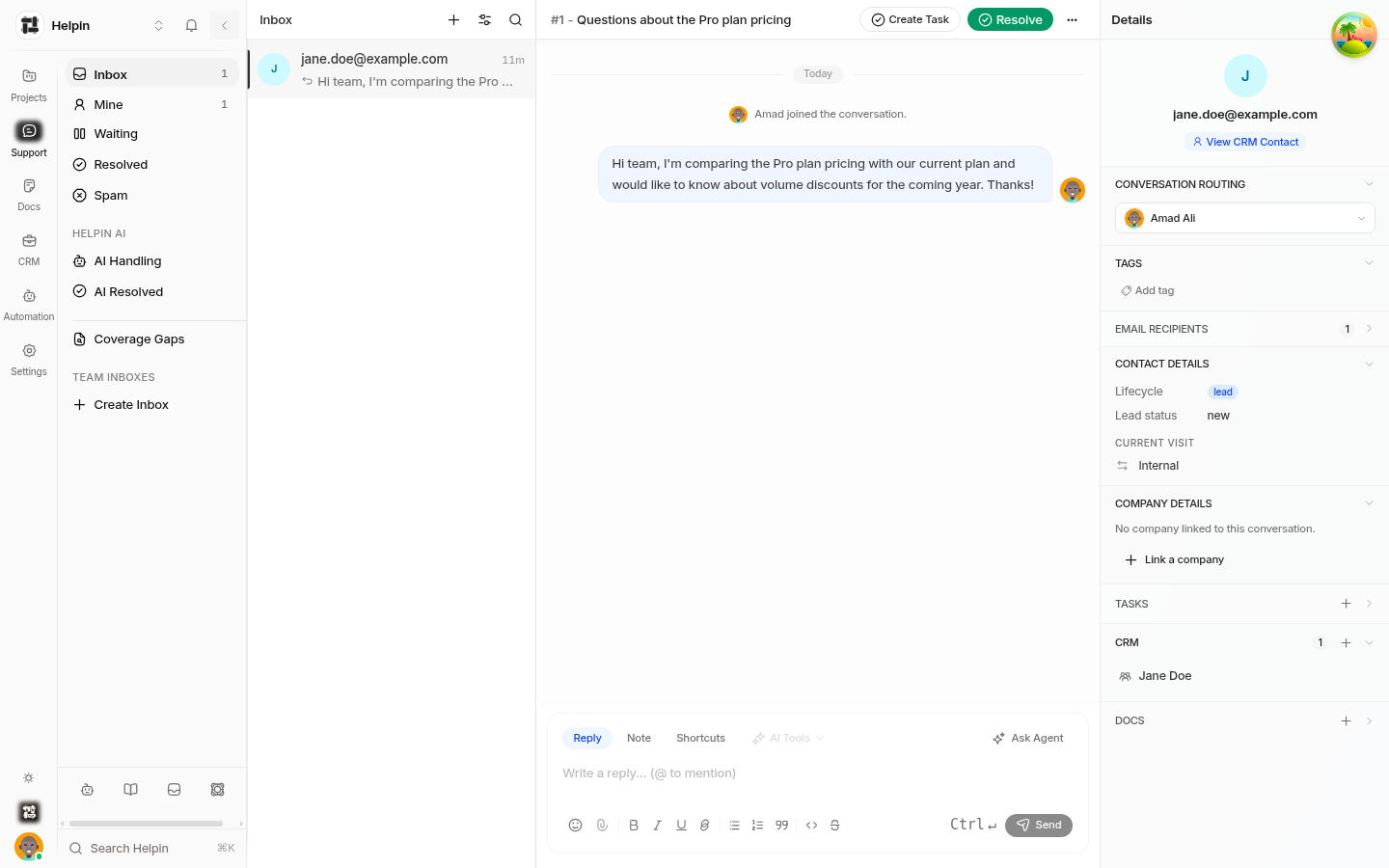
Two modes: Reply and Note
The composer has two tabs:
Reply — a customer-visible message sent via the conversation's channel (chat or email).
Note — an internal note only teammates see. Notes are visually distinct in the thread and never sent to the customer, never emailed, and never used for AI customer-visible answers.
Formatting
The toolbar supports standard rich text: bold, italic, underline, strikethrough, inline code, bullet and numbered lists, quotes, emoji, and links. Formatting applies per block; keyboard shortcuts (Ctrl/Cmd+B, I, U) work as expected.
Shortcuts (canned responses)
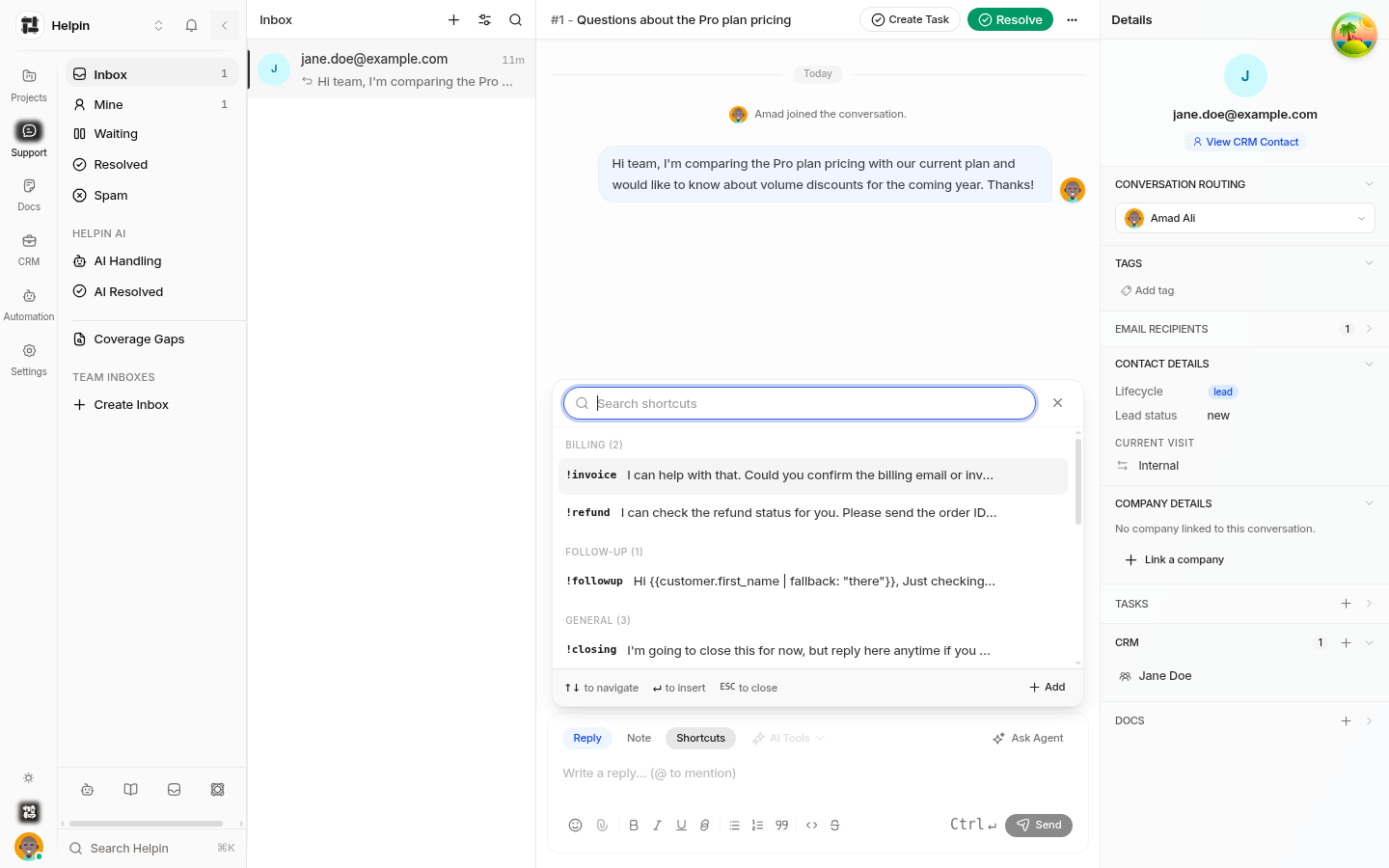
Shortcuts are saved replies inserted with a ! prefix:
Type
!in the composer (or click Shortcuts).A panel lists available shortcuts with their snippets — searchable, with Add to create a new one inline.
Select one to insert its content at the cursor.
Shortcuts support variables like {{customer.first_name}} with fallbacks — for example Hi {{customer.first_name | fallback: "there"}}. Workspace shortcuts are managed in Support settings, under Canned responses; the panel's search filters by code or content. Inserted shortcut text is treated as part of your draft (including for AI tools and translation).
AI Tools
The AI Tools button (enabled while your draft has content) offers AI assistance on the draft itself — rewriting, adjusting tone, and similar edits. AI tools modify your draft text; nothing is sent to the customer until you send. See Support AI assistant configuration for where AI drafting behavior is configured.
Attachments
Attach files to replies via the attach control. Attachments appear as gallery cards in the thread; customers receive them on chat and email channels. Large files are supported up to the platform's per-message limit, and images render as previews.
Links
Paste a URL and it becomes a link; use Insert link to attach text to a URL. Link previews may render as cards. Helpin checks link safety (malware / phishing status) before customers click, and marks risky links.
Sending
Send delivers the reply through the conversation's channel. Sending a reply does not resolve the conversation; check its status afterwards (for example Waiting on Customer or Resolved) — see Conversation lifecycle states.
If the conversation is email-based, delivery status (sent / delivered / opened / bounced) is tracked on the message.
Sending assigns you the conversation if it was unassigned.
Drafts
Drafts persist as you type — leaving the conversation and returning restores your in-progress reply. Draft attachments are remembered too.
Related pages
Was this article helpful?