Tasks
A task is the core unit of work in Helpin. Every feature you build, bug you fix, or chore you complete is tracked as a task. Tasks belong to a team, move through that team's workflow states, and can be grouped into epics and sprints. Each team has its own workflow, and you can customize its states.
Each task has a unique task ID (for example HELP-123) formed from your workspace key and a number. You'll see the task ID on cards, in lists, and at the top of the task's detail sidebar — with buttons to copy the ID or its git branch.
Where tasks appear
My Work — under Projects → My Work, with Assigned to me and Requested by me tabs, so you see the tasks that need your attention (see My Work).
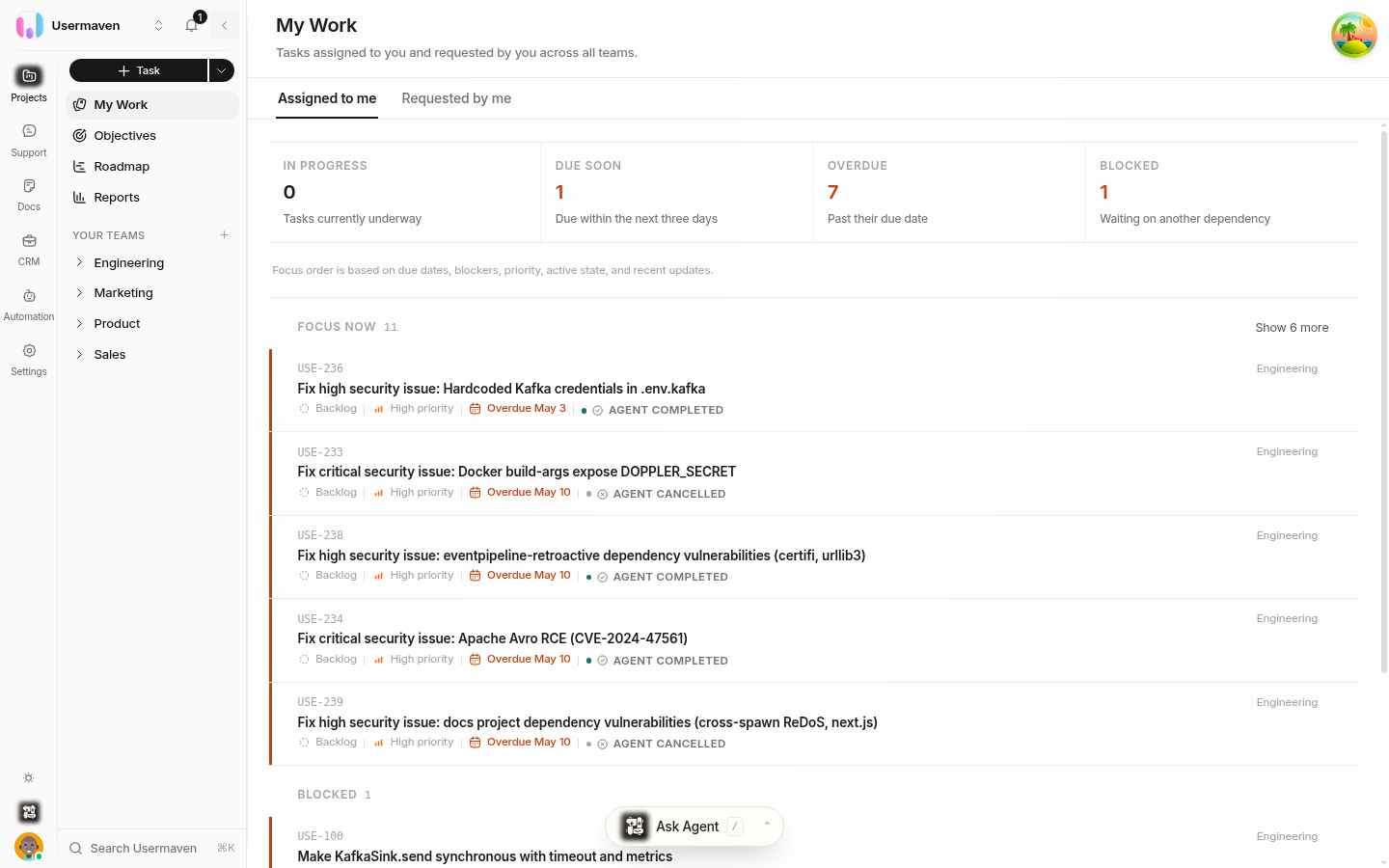
Tasks — under Your Teams → Tasks (per team), the main board and list views of a team's tasks. Epics, sprints, and objectives also list the tasks inside them.
Create a task
You can create a task from several places:
Click the global + menu in the sidebar and choose Task.
On the board, click Add task on any column.
From a task's detail page, use the related‑tasks action to create a linked task.
In the create dialog:
Enter a Title. The Description editor (rich text or Markdown) supports mentions, attachments, checklists, and external links.
Set the task's metadata in the right column:
Team (required) — which team owns the work.
State — the workflow state the task starts in (your team's default state is preselected).
Owners — one or more people responsible for the task.
Requester — who asked for the work (defaults to you).
Priority, Severity, and Type.
Labels — to tag and filter work.
Epic and Sprint — the larger grouping and the timebox the task belongs to.
Code repo — when set, agents get code context for planning and execution.
Estimate — story points for sizing.
Due date — when the work should be done.
Click Save, or Save & create another to keep adding tasks.
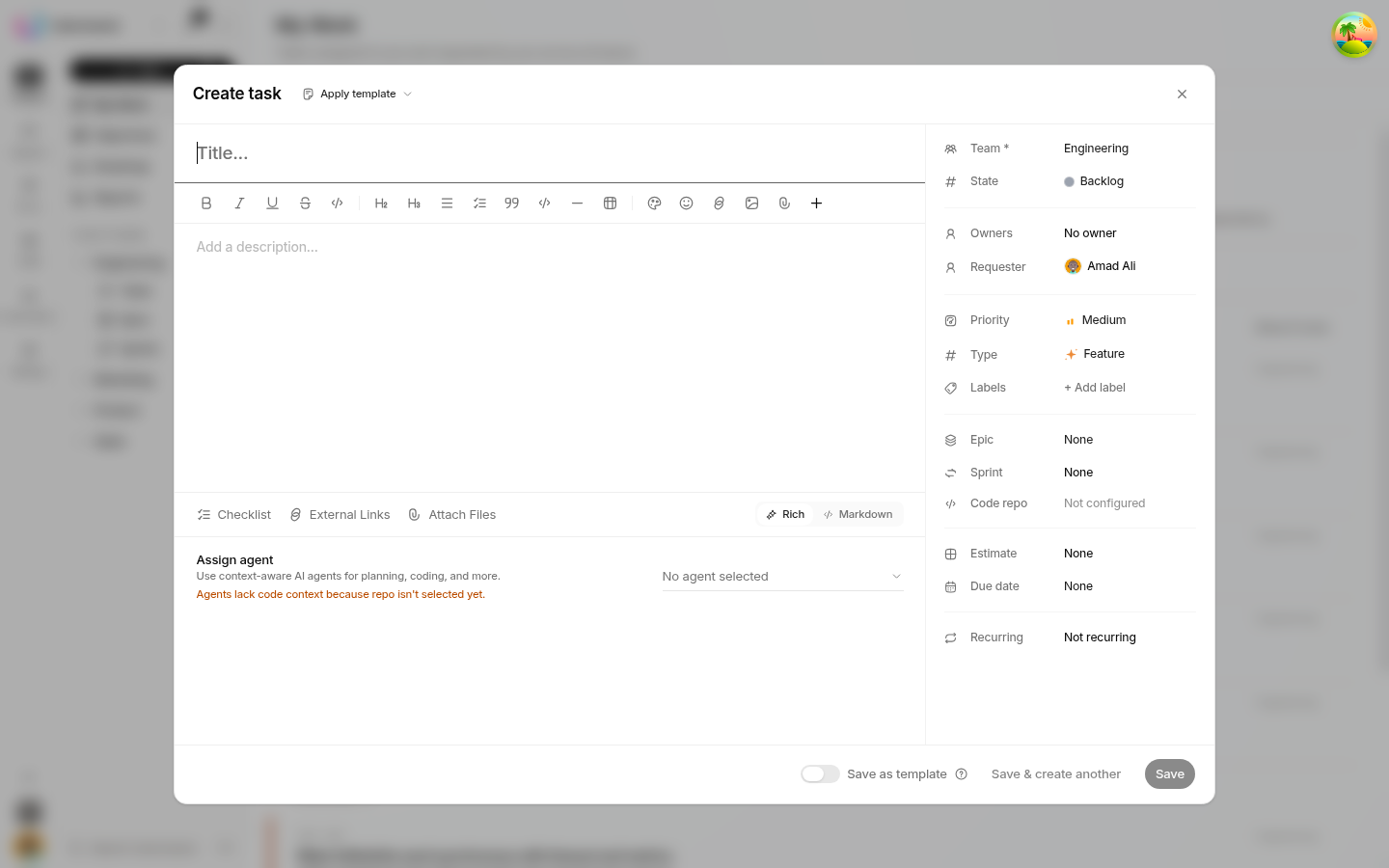
You can attach checklists, external links, and files while creating. If your workspace uses task templates, you can pick a template to prefill the task, and save the current task as a template.
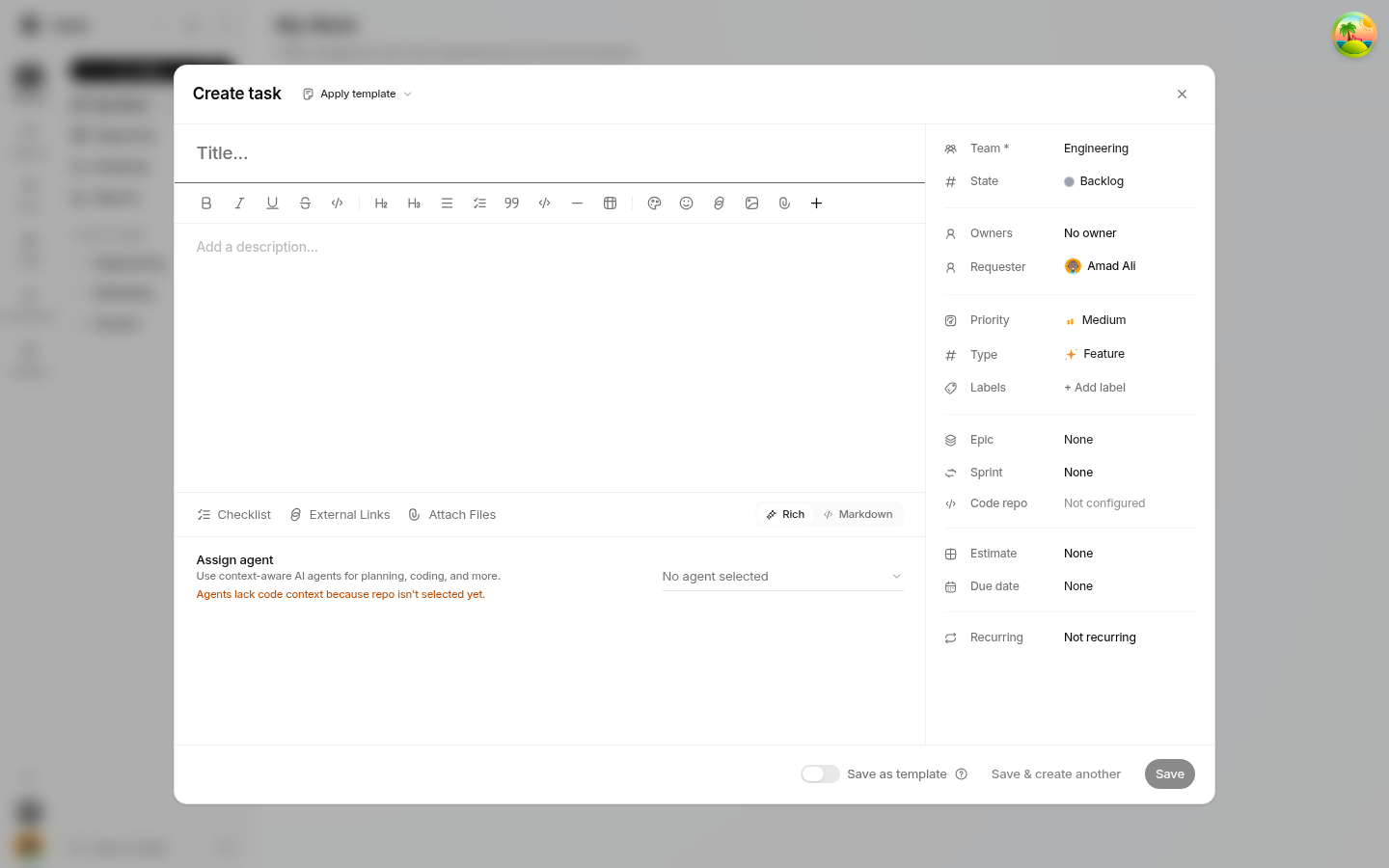
What you can set on a task
A task's sidebar in the detail view lets you change, at any time:
Team, State, Owners, Requester
Priority, Severity, Type, Labels
Epic, Sprint, Estimate, Due date
Blocker — mark the task blocked, e.g. by an external dependency
Recurrence — when the task is generated from a recurring template
Owners and requesters are followed on the task automatically, so they get notified of activity.
Work on a task
Open a task to see:
Overview — the description, attachments, checklist, and the Updates stream where you can comment, mention teammates, and follow the activity timeline (state changes, field edits, and agent runs).
Delivery — when your workspace uses Helpin agents and git delivery, this tab shows delivery context, agent runs, and development history.
Sub‑tasks and task relationships
Helpin does not maintain a separate "sub‑task" entity. To break work down you have two options:
Add a checklist for small steps inside the task.
Link tasks to express relationships between tasks: Blocks, Relates to, and Duplicates. A blocked task shows a Blocked by badge (for example Blocked by HELP‑456) on its card. You can also record an external blocker without linking another task.
When you move a task to a state that counts as started or done, Helpin uses that for progress roll‑up in epics, sprints, and objectives.
Best practices
Give tasks focused titles that describe the outcome.
Keep a single owner responsible, and use owners only where responsibility is genuinely shared.
Set priority, type, estimate, and due date so boards and reports are meaningful.
Use checklists for launch/review steps and link tasks only when a real dependency exists.
Tip: If your team creates similar tasks often, save the filled-in dialog as a task template — see Templates.
Related
Was this article helpful?