Objectives & key results
Objectives let you connect project work to the outcomes it should achieve. You can run lightweight goal tracking that groups epics under a theme, or OKR-style goals that pair epics with measurable Key Results.
Objectives are workspace-wide: they appear under Projects → Objectives and can span teams. Only team managers (and admins) can create or edit objectives — other members can view them.
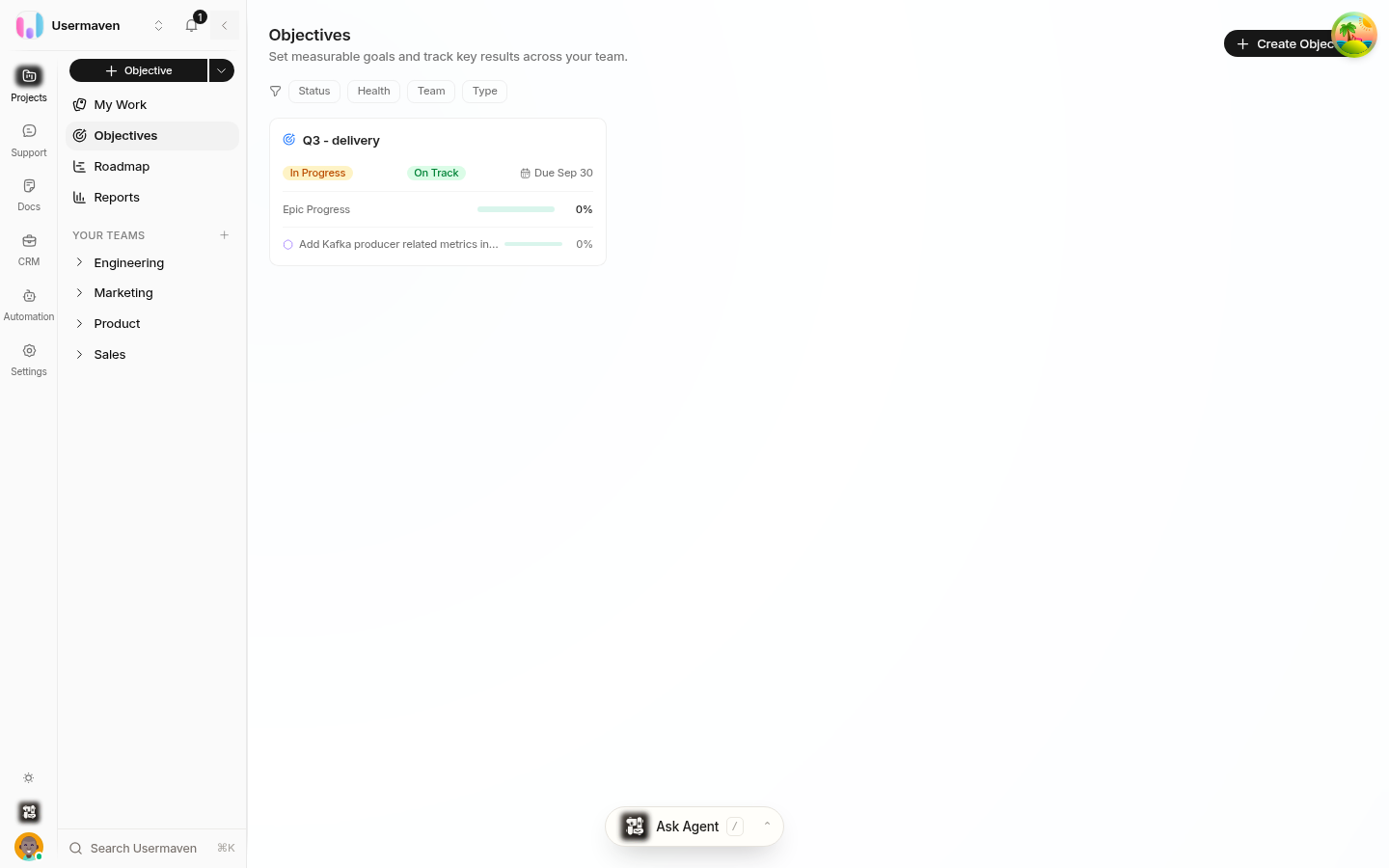
Create an objective
Open Projects → Objectives.
Click Create Objective (or use the global create menu and choose Objective).
Give the objective a Title and, optionally, a description.
Set the State, add Teams and Owners, and optionally set Start date and Target date.
Click Create Objective.
Tactical vs strategic objectives
Every objective has a type that shapes how progress is calculated:
Tactical — tracks a theme, release, or focused plan. Progress is derived from the linked epics' task completion. No key results required.
Strategic — a full OKR-style goal. Progress takes the progress of its key results into account.
Strategic objectives are distinguished in the UI with a dedicated icon and the Strategic Objective label; tactical objectives show the Tactical Objective label. Use the filter chips on the Objectives page (Strategic / Tactical) to narrow the list.
Add key results
Key results measure whether the objective's outcome is being achieved. To add one, open the objective and click Add Key Result.
Each key result needs a Name and a Measure as type:
Boolean — a simple done / not done outcome. Toggle between Done and Not done.
Percent — progress tracked on a scale that runs from zero to one hundred.
Numeric — a custom range such as zero to fifty users, with Starting value and Target value.
Progress is computed as (current − starting) ÷ (target − starting), capped at one hundred percent. A boolean key result reaches one hundred percent when done and zero percent when not. On the objective detail page, key results are listed with their type badge, progress bar, an editable current value, and a note of who last updated them.
When an objective has several key results, Helpin shows the average KR Progress and compares outcome progress against the percentage of work completed — so you can spot when results are lagging behind effort.
Link epics to an objective
From the objective detail page, use the link-epic control to attach the epics that contribute to the goal. An epic can belong to multiple objectives, so shared initiatives can support more than one goal.
Tactical objectives show linked epics with their task-completion progress.
Strategic objectives factor key result progress into the objective's overall progress.
States, health, and archiving
Objectives move through three states — Not Started, In Progress, Done — which you can change from the objective's detail page. Objective health (On track, At risk, Off track) compares key result progress against the elapsed schedule between Start date and Target date. When Helpin computes a different health than the current one, it shows a Suggested value you can apply with one click.
Archiving an objective hides it from the list and archives its key results; it can be restored later from archived items.
Related
Was this article helpful?