Epics
An epic is a large body of work that groups many tasks toward a meaningful outcome — an initiative, a release, a customer problem, or a milestone. Tasks keep their own team, workflow, and sprint, while the epic provides the bigger grouping and roll-up view.
Epics are team-scoped: they appear under Projects → Your Teams → Epics for the selected team and can be linked to workspace-wide objectives.
Create an epic
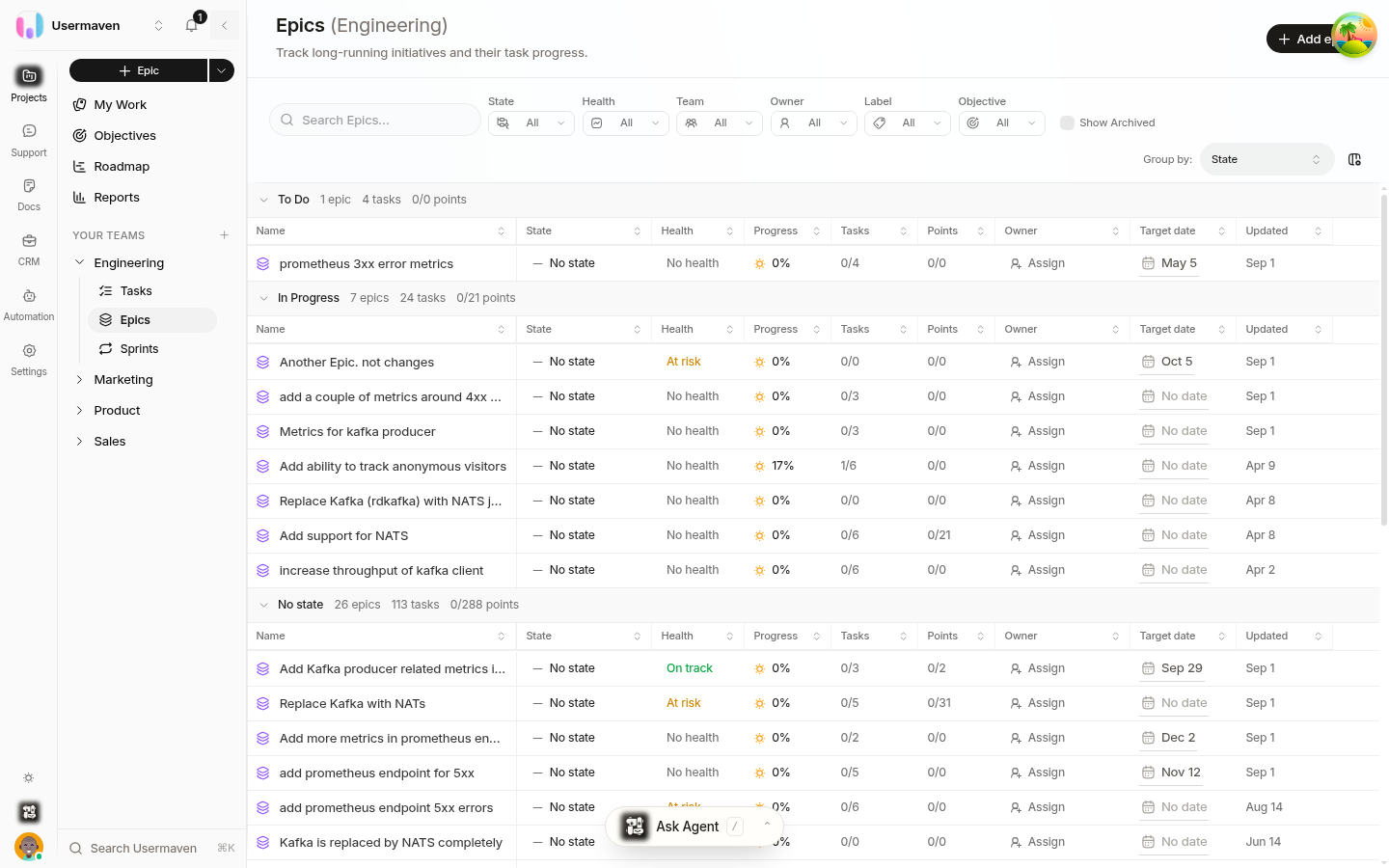
Open Projects → Epics (under Your Teams) and click Add epic — or use the global + menu and choose Epic.
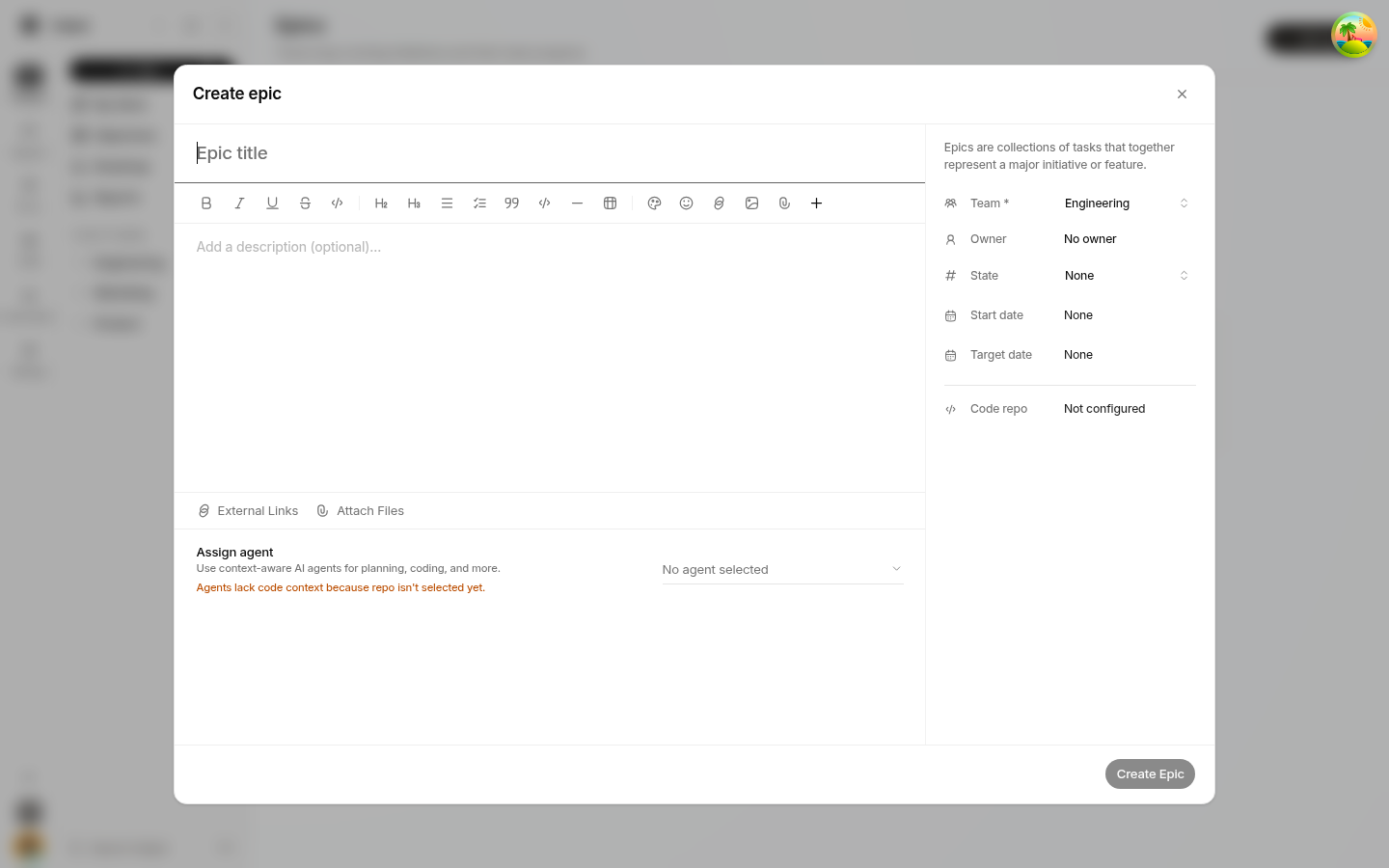
Give the epic a Title and, optionally, a description (rich text with mentions and file attachments).
In the right column, set:
Team (required) — the primary team responsible for the epic.
Owner — the person driving it.
State — the epic workflow state (defaults to To Do).
Start date and Target date.
Code repo — when set, gives agents code context for planning and execution.
Click Create Epic.
You can also attach files and external links while creating. If your workspace has agents and a repository connected, an epic can be assigned an agent with a delivery target (see Epic delivery runs).
Work with epics
Add tasks to an epic
Open an epic and use Link tasks to search existing tasks by name or task key, or create a new task in the epic directly. Tasks can still belong to their own team, sprint, labels, and workflow — the epic is the grouping above them.
Epic workflow states
Epics have their own workflow, separate from task workflows. Default epic states are:
To Do (the default when an epic is created)
In Progress
Done
Like task workflows, epic states can be customized. Each state maps to a stage (unstarted, started, or done) that drives progress.
Progress
Epic progress is computed from the tasks inside it: Helpin tracks how many tasks are unstarted, started, and done, plus total story points and completed points. You'll see progress as a percentage next to the epic and on its detail page, along with the number of tasks and points.
Health
Health communicates whether an epic is on track. Options are No health, On track, At risk, and Off track. Set health from the epic's detail page.
Helpin can also suggest a health value based on the epic's start/target dates and task completion: when the suggested value differs from the current one, a Suggested: link appears next to Health so you can apply it with one click. To receive suggestions, give the epic a start date and a deadline.
Epic detail page
Opening an epic shows:
Overview — the epic description, its tasks list (board/list, groupable), and health.
Delivery — agent runs and delivery context when the epic has an agent delivery target configured.
The detail sidebar shows the epic's State, Health, Team, linked Objective, Owner, Start date, Target date, and Code repo, plus actions to Archive/Unarchive the epic.
Epics list and roadmap
The Epics table shows Name, State, Health, Progress, Tasks, Points, Owner, linked Objective, Target date, Team, Start date, Labels, and creation/update times. Filter and group the list by these properties.
Epics with start and target dates also appear on the Roadmap timeline under Projects → Roadmap, so you can see what's coming and when (see Timeline / Roadmap view). Link epics to an objective to connect them to goals.
Related
Was this article helpful?