Sprints
A sprint is a dated work period that helps your team focus on a set of tasks and see progress together.
Create a sprint
Go to Sprints.
Select Add sprint.
Give the sprint a clear name, then set its Start date and End date.
Choose the owning Team when the work is primarily planned by one team.
Add a description for the sprint goal or useful planning notes.
The sprint's status is based on its dates, so you do not set it manually:
Status | When it applies |
|---|---|
Unstarted | Before the start date |
Started | From the start date through the end date |
Done | After the end date |
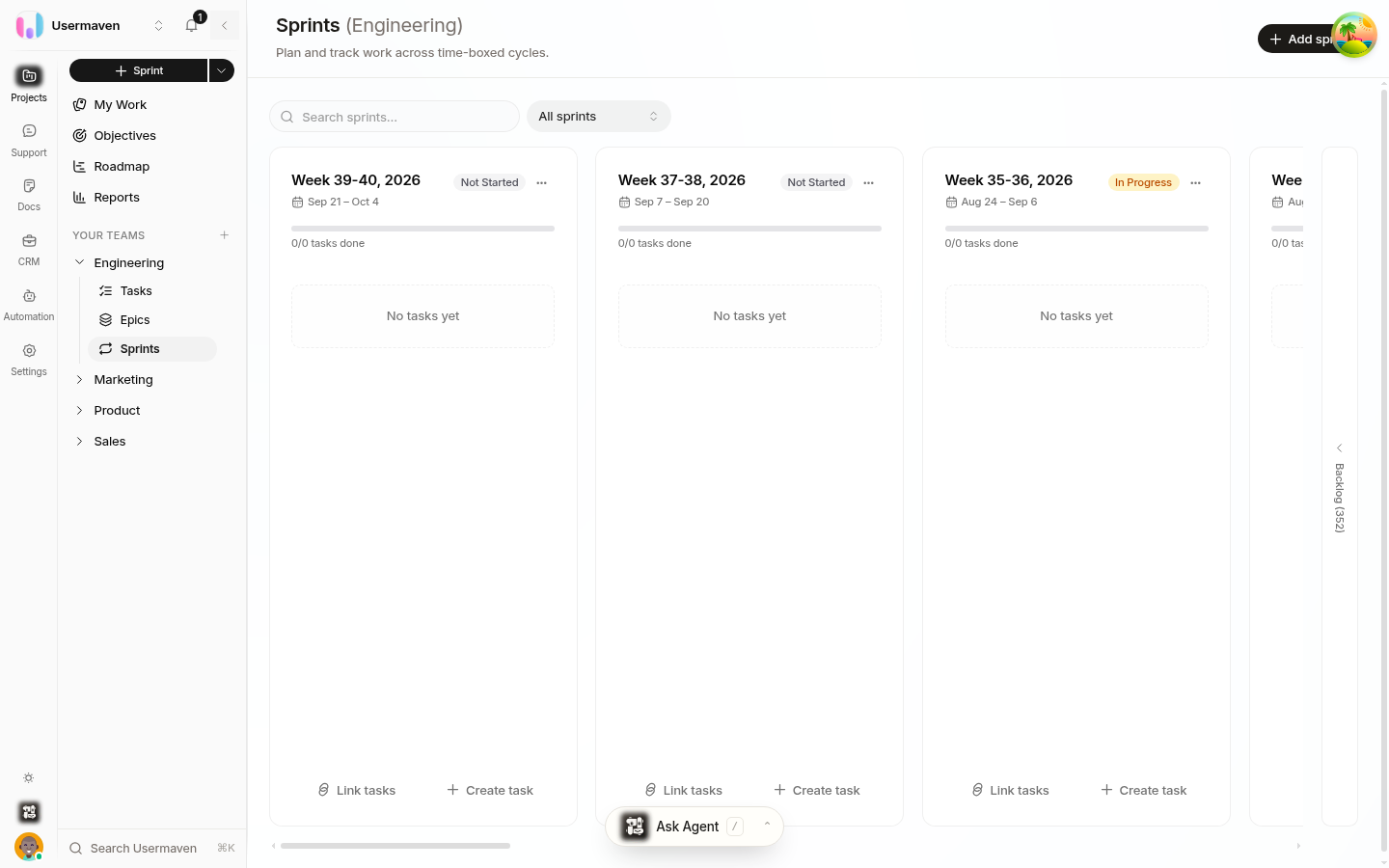
Tasks in the same sprint can still belong to different epics and teams, so a sprint can hold cross-team or cross-epic work.
Add tasks to a sprint
Open the sprint planning workspace from the sprint.
Pull eligible tasks from the backlog into the sprint, or use Add task from the sprint to create work already assigned to it.
Before adding work, check that each task is ready enough to plan: its title should be understandable, and its owner, estimate, priority, and labels should be set where they matter.
Follow sprint progress
As tasks move through their workflow, Helpin calculates sprint totals such as completed work, unfinished work, and story points. Use those totals to see how the sprint is tracking while it runs.
Change sprint dates
If dates need to change, update the sprint details. Because status follows the dates, changing them can also change whether the sprint is shown as unstarted, started, or done. When a sprint's end date passes, Helpin marks it done and the closeout view becomes available.
Keep the sprint focused
Tip: Use one sprint for work your team intends to deliver in the same time box. Leave ideas and work that is not ready in the backlog until you are ready to plan it. This keeps the sprint's completion and rollover information meaningful at the end of the period.
Related
Was this article helpful?