Templates
Templates save time when you create the same kind of task repeatedly. A task template prefills a new task with saved defaults; a recurring template creates a new task on a schedule or after completion of the previous one.
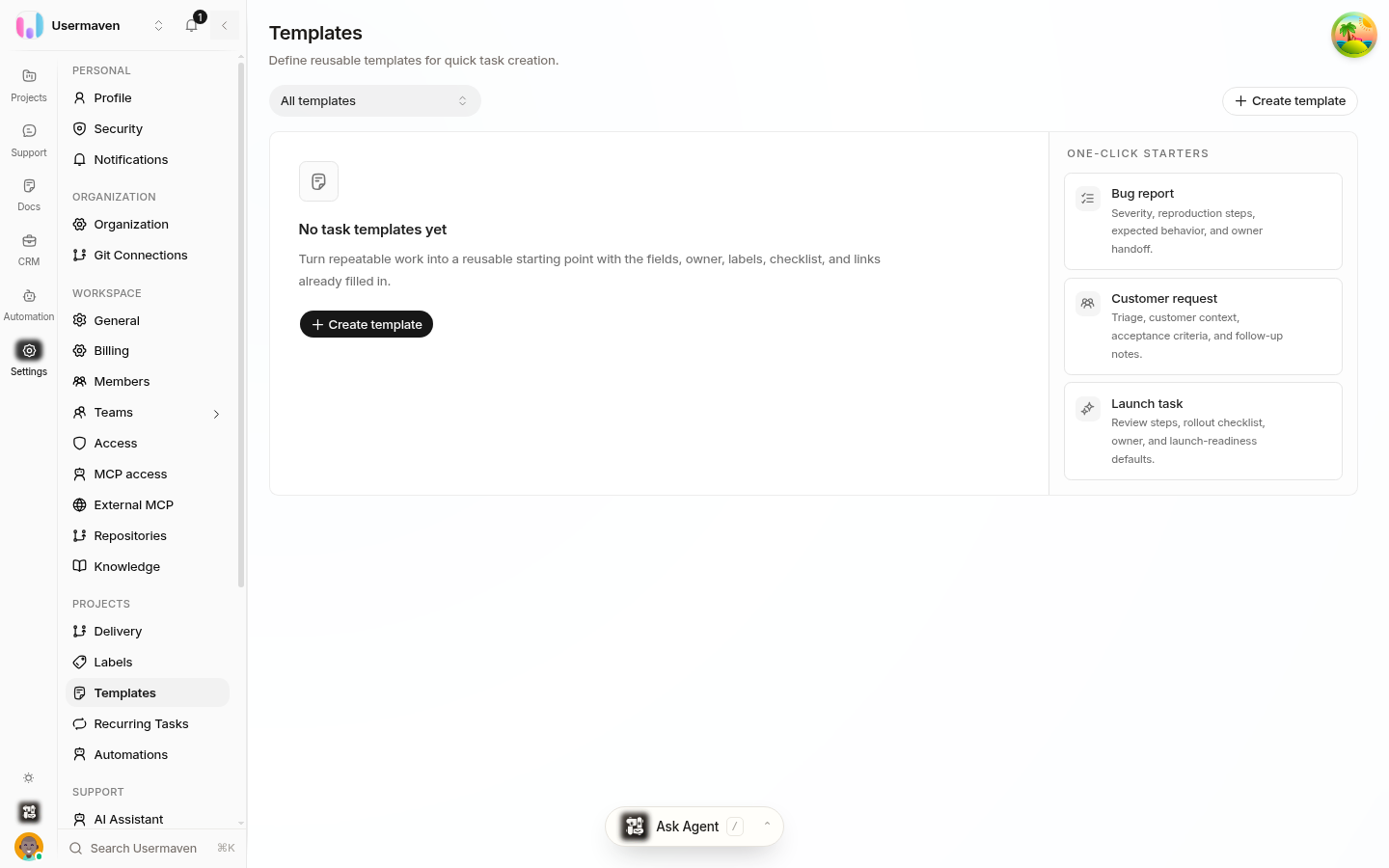
Create a task template
Open Settings and choose Templates.
Select Create template (or start from one of the suggestions, such as Bug report or Launch task, by choosing Create on its card).
Give it a clear name and describe when people should use it.
Set the defaults the new task should start with — for example team, workflow state, priority, estimate, labels, and checklist — then save.
A task template can prefill the task type, description, default team, epic, workflow state, priority, estimate, labels, custom fields, and checklist items.
When you create a task from a template, its fields are populated from the template. You remain the requester, and you can change any prefilled value before saving. You can also pick a template in the task create dialog, and save an existing task's setup as a new template.
Maintain reusable templates
Edit a template to refresh its defaults as your team's workflow changes.
Duplicate a template to make a close variation without starting over.
Remove templates that no longer match how the team works.
A good template provides a useful starting structure without hiding decisions that should be made for each task, such as owner and due date.
Create a recurring template
Use a recurring template for work that must happen repeatedly, such as a weekly report or a monthly review.
Open Settings and choose Recurring Tasks. This is the separate page where recurring templates live.
Create a recurring template and choose a recurrence mode: Time-based — create a task on a fixed schedule, such as daily or weekly; or On completion — create the next task when the current one finishes.
Set the schedule details and the defaults each generated task should start with, then save.
Manage recurring work
On the Recurring Tasks page, search templates and filter by status or team, then view or edit their details. You can:
Pause a template and resume it later.
Skip the next occurrence.
Generate a task now.
Duplicate or stop the series.
Use the run history to review the tasks a template has generated and confirm the schedule behaves as expected.
Tip: A recurring template owns its own schedule. To change how often work happens, edit the recurring template rather than the generated tasks.
Related
Was this article helpful?