Teams
Teams group the people who plan and deliver work together, while your workspace remains the shared place for membership, roles, and organization-wide controls.
Create and manage a team
Open Settings and choose Teams.
Select New Team. If your workspace has no teams yet, the button reads Create Team.
Give the team a recognizable name and description.
Add the workspace members who work with that team.
Set a team handle, such as
growth, so people can mention the team as@growth.Save the team.
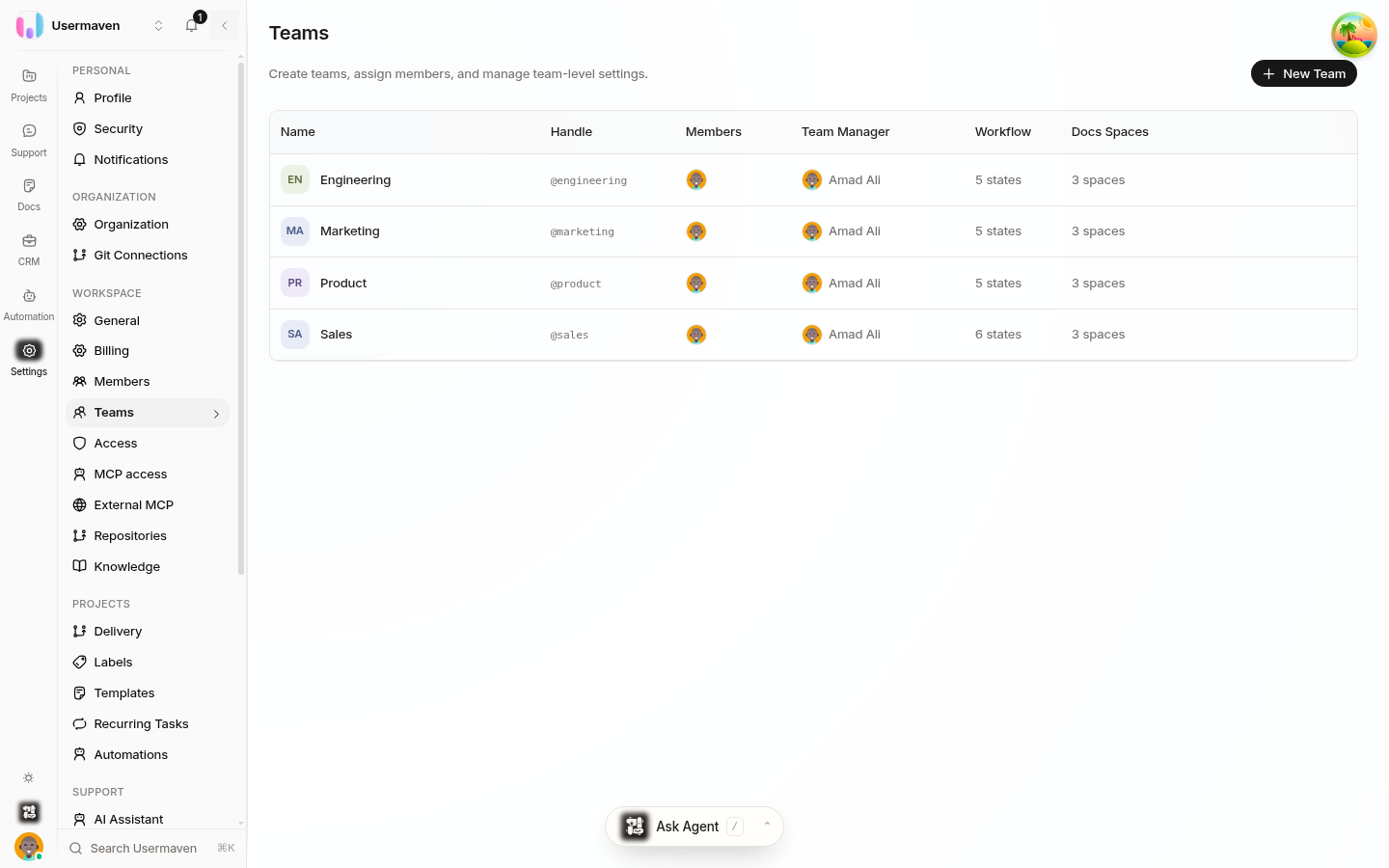
A team belongs to one workspace. Creating a team does not create a separate workspace or move your organization-wide controls.
Workspace-wide vs team-scoped settings
Scope | Where it is managed | What it covers |
|---|---|---|
Workspace-wide | Settings for the workspace | Members, invitations, roles, and permissions; security, billing, audit, and integrations; optional PM defaults shared across teams |
Team-scoped | Team Settings for one team | Team members and owners, the team handle, labels, workflows and statuses, automations, and the team's PM defaults |
Workspace administrators and owners manage the shared governance settings. This keeps access and organization-wide rules consistent for everyone.
Choose the right place to make a change
Use workspace settings when a change should affect the whole workspace, such as inviting someone or changing their workspace role.
Use a team's settings when the change is about how that team plans, labels, or runs its work.
If you need access to a team, ask a workspace administrator or the team owner to add you.
Your workspace role still controls what you can do in PM.
Related
Was this article helpful?