Keyboard shortcuts
The Support inbox has single-key shortcuts so you can work a queue without reaching for the mouse. They only fire when you are not typing in the composer, so a stray key never changes a conversation mid-reply.
The full list
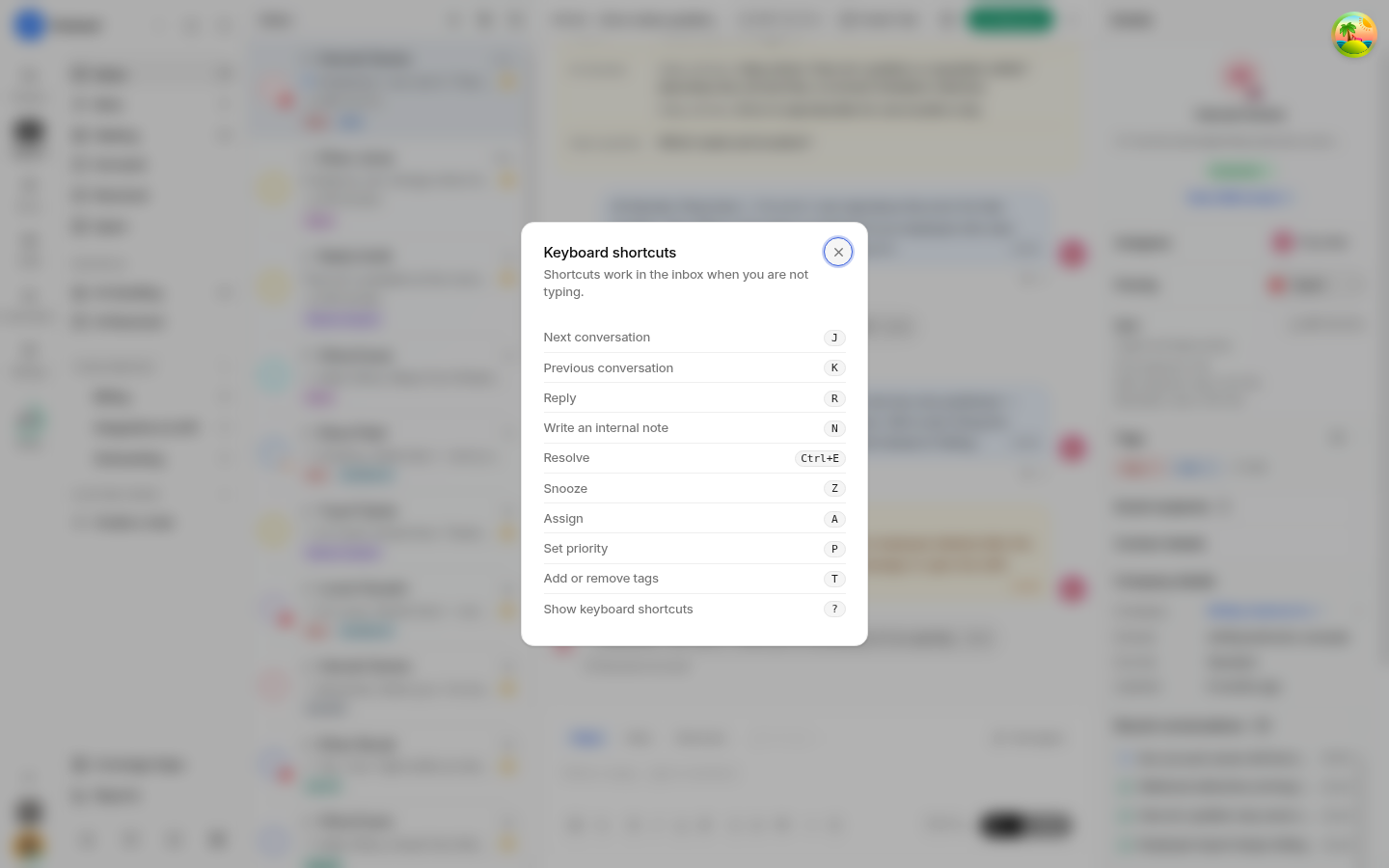
Key | Action |
|---|---|
| Next conversation |
| Previous conversation |
| Reply |
| Write an internal note |
| Snooze |
| Assign |
| Set priority |
| Add or remove tags |
| Show the keyboard shortcuts dialog |
| Resolve |
Resolve is the exception to the single-key rule. Resolving changes a conversation permanently, so it also requires the Command key (Ctrl on Windows and Linux) to stop one stray e from closing a live conversation.
The same list is available in the app: press ? in the inbox, or open the shortcuts dialog from the inbox, and it shows every shortcut with its key.
The ones worth learning first
jandk— walk the list without clicking rows. This is the single biggest speedup when you are triaging.randn— switch between a customer-visible reply and an internal note, which is the most frequent mode change in the composer.aandp— assign and prioritise without hunting through the sidebar.?— never memorise the whole list; look it up.
Habits that make shortcuts pay off
Learn two at a time and let them become automatic. A half-learned set costs more attention than clicking.
If a shortcut appears to do nothing, check focus — while the composer has focus, typing wins and the inbox shortcuts stay out of the way.
Browser and operating-system shortcuts take precedence. If one conflicts with a key you use all day, use the mouse for that action rather than fighting it.
Shortcuts act on the conversation currently open, so confirm you are where you think you are before pressing
zor⌘E.
Related pages
Was this article helpful?