Custom inbox views & bulk actions
Views are saved filters over the conversation list. Built-in views ship with the workspace; you can add your own so the team works from the same slices instead of re-filtering by hand.
Creating and editing views
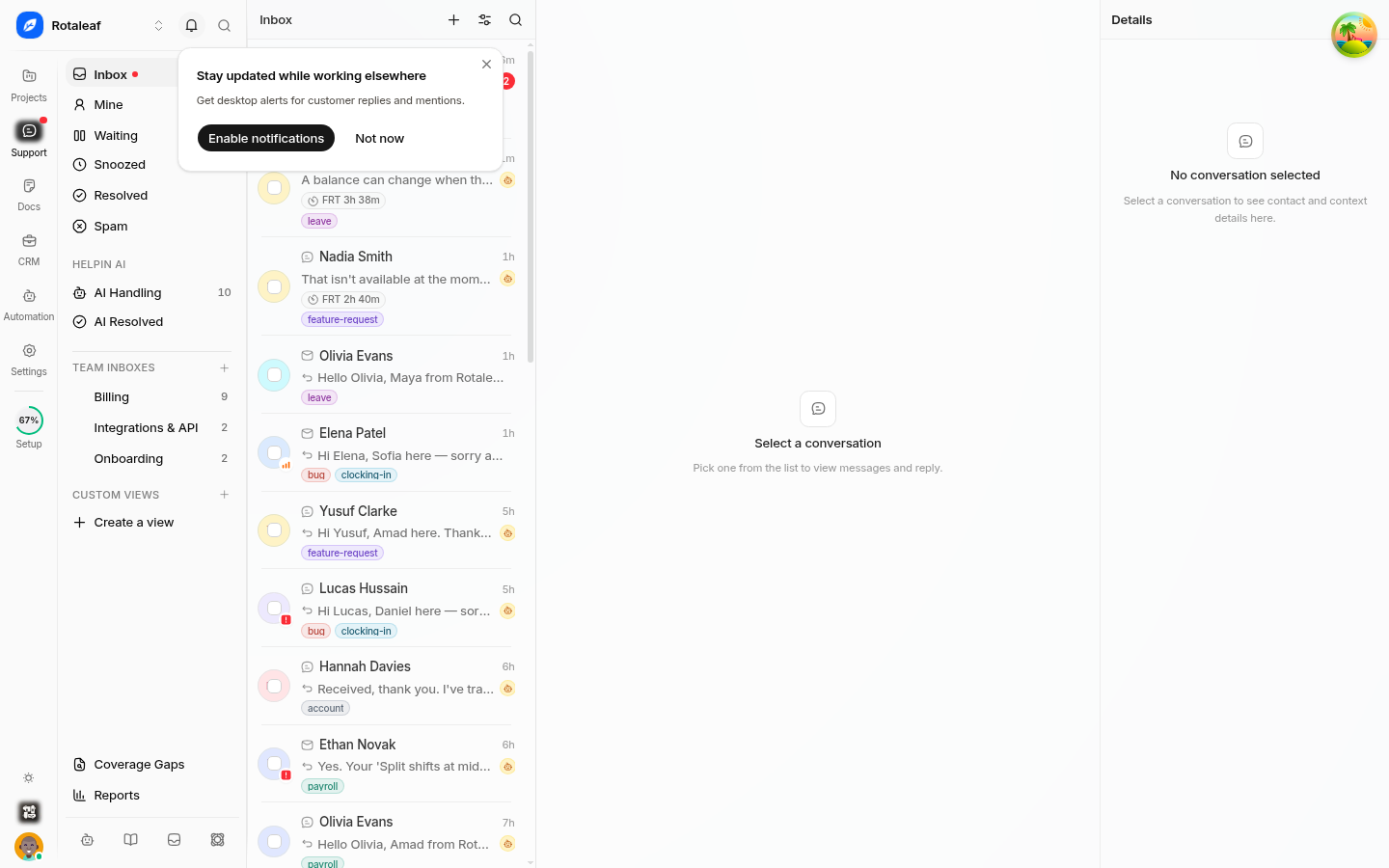
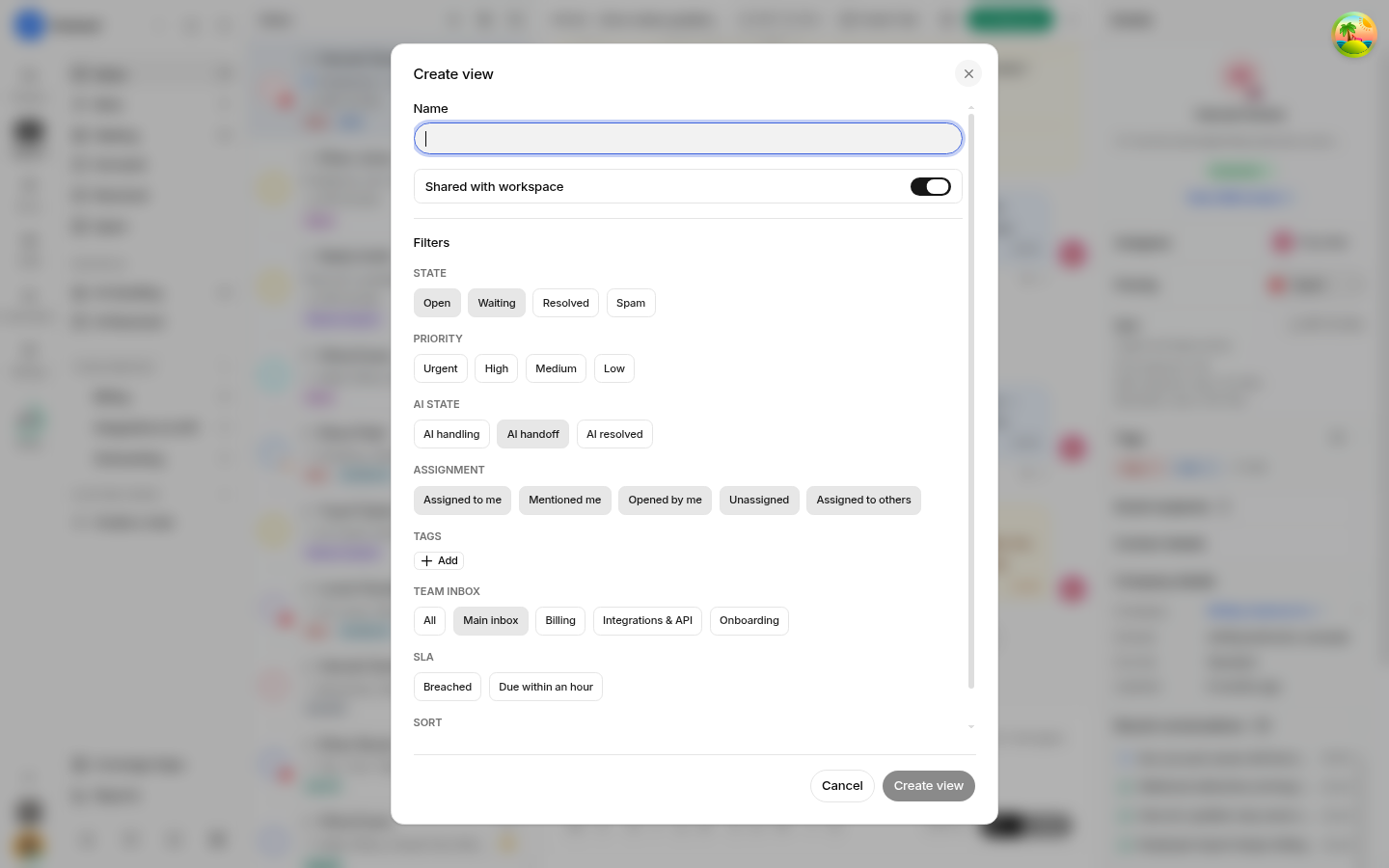
Create a custom view from the inbox sidebar using Create custom view: give it a name, choose the filter conditions, and save. Views are shared across the workspace, so a view you build is a view your teammates see.
Built-in views can also be edited to change the filters they show. Every view carries a live count of matching conversations, which turns the sidebar into a standing workload summary rather than a set of static links.
Reading views needs support read access; creating, editing, and deleting views needs support edit. Deleting a view removes it for everyone, so check that nobody uses it as their working queue first.
Bulk actions
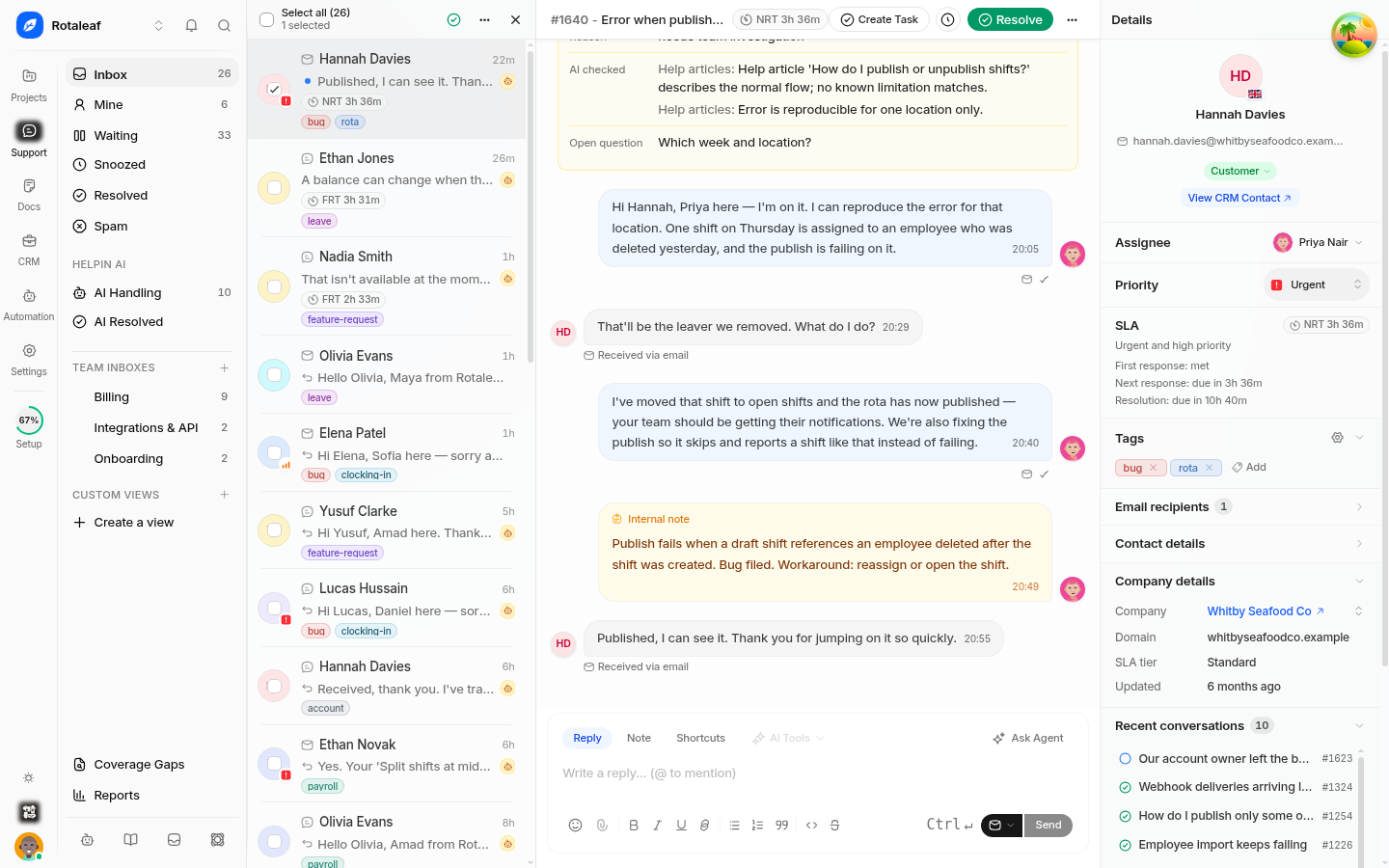
Select multiple conversations with the multi-select control in the list to reveal the bulk toolbar, then apply one action to everything selected. The toolbar covers the actions you would otherwise repeat row by row: assign, set priority, add a tag, move to another inbox, snooze, and resolve.
Bulk actions are how a triage sweep gets done in a minute instead of twenty.
Views worth building
Unassigned this week — nothing sits ownerless into the weekend.
Due soon — priority and status combined to catch conversations approaching an SLA target before they breach.
Waiting on customer, over five days — cleanup list for conversations nobody is coming back to.
Escalated — the tag-based queue leads actually watch.
Mine, open — the default working view for each agent.
Working habits
Run bulk actions from a view, not by hand-picking rows. The view is reproducible; your memory of which rows you clicked is not.
Re-read the filter before a bulk resolve. A bulk action on the wrong view is the fastest way to close conversations that are still open.
Review view counts weekly. A view that has grown for three weeks is telling you something about routing or staffing.
Retire views nobody opens. A long sidebar of dead views hides the two that matter.
Conversation history
Every conversation keeps a shared history of what happened to it — status changes, assignment changes, merges, routing moves, and field edits. Open it from the conversation when you need to reconstruct why a thread looks the way it does; "who closed this and when" is usually answered there in one glance. History is available to anyone with support read access, so it is how a teammate catching up on someone else's conversation gets oriented without asking.
Related pages
Related pages
What a view can filter on
The builder groups filters by what they describe:
Status — Open, Waiting, Resolved, Spam.
Priority — Urgent, High, Medium, Low.
AI state — AI handling, AI handoff, AI resolved. These are the views that tell you what the assistant is doing right now.
Assignment — Assigned to me, Mentioned me, Opened by me, Unassigned, Assigned to others.
Inbox — all inboxes, or specific team inboxes such as Billing or Onboarding.
SLA state — Breached, or due within an hour. Build a Due within an hour view and the queue starts defending your SLA targets instead of you.
Sort order — Newest, Oldest, or Next SLA due. Next SLA due turns a list into a work order for the shift.
A Shared with workspace switch decides whether teammates see the view; turn it off for a personal queue.
Was this article helpful?