Chat widget overview
The Helpin chat widget is the customer-facing messenger for your website or product. It gives visitors a chat bubble, an AI-first answer experience backed by your help center, and a path to your human team — all in one embeddable launcher.
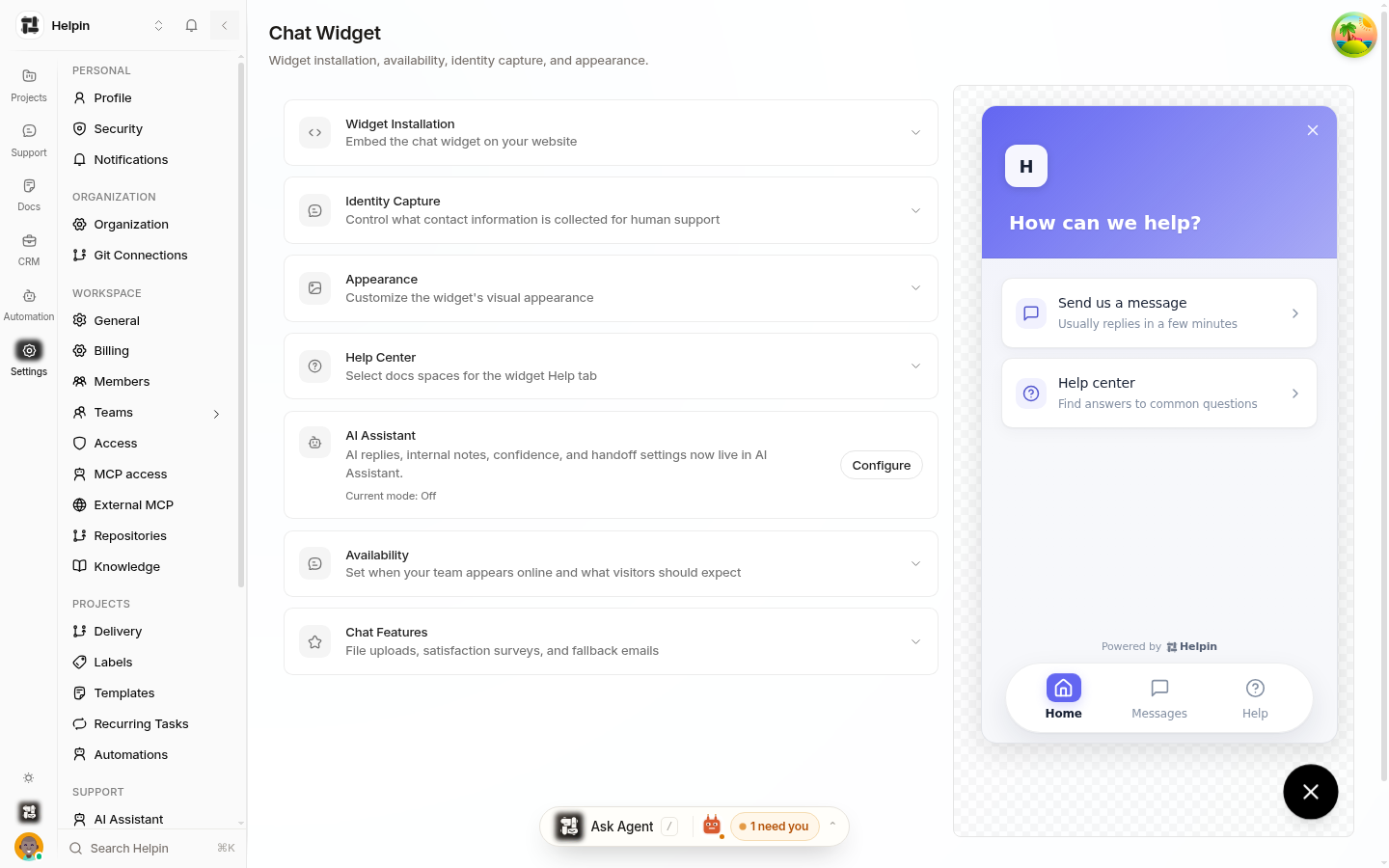
What visitors see
The widget is a launcher button in the corner of your site. Opening it shows:
Messages — the conversation view with AI support and your team.
Help — articles from the docs spaces you connect to the widget.
A Talk to a person option when AI is on (configurable).
Your branding: name, avatar, logo, colors, and reply-time expectations.
Visitors can chat anonymously or be identified; their conversation history persists across page loads in the same browser.
What your team sees
Every widget conversation arrives in the Support inbox, where:
The AI support agent answers first when enabled (see AI support agent overview).
Conversations route automatically to the right team inbox.
Visitors who provide their email become or match CRM contacts (see Identify visitors from the widget).
If a visitor disconnects before your team replies, Helpin emails them the reply (email fallback — see Email channel & email fallback for offline visitors).
Widget capabilities
Capability | Where it's controlled |
|---|---|
Embed script and installation | |
Branding, launcher, colors, availability | |
Identity capture rules | Chat Widget settings → Identity Capture |
Help center tab content | Chat Widget settings → Help Center (choose docs spaces) |
AI behavior (confidence, handoff, hours) | |
Programmatic control (open, hide, article deep-links) |
Installing in a nutshell
Copy your widget key from Settings → Chat Widget.
Paste the one-line script (or npm SDK) into your site before
</body>.Refresh your site — the launcher appears.
Customize identity capture, appearance, and AI behavior in the Chat Widget settings.
Widget vs. Help Center
The widget is the conversational surface; the Help Center is your public docs site. They share content: docs spaces can be surfaced in the widget's Help tab, and the AI answers from the same knowledge sources. Configure the public site separately under Settings → Help Center.
Related pages
Was this article helpful?