Customer profile drawer
The Details panel on the right side of a conversation holds everything about who the customer is and how the conversation is wired — routing, tags, recipients, linked records. It is the fastest way to get context without leaving the thread.
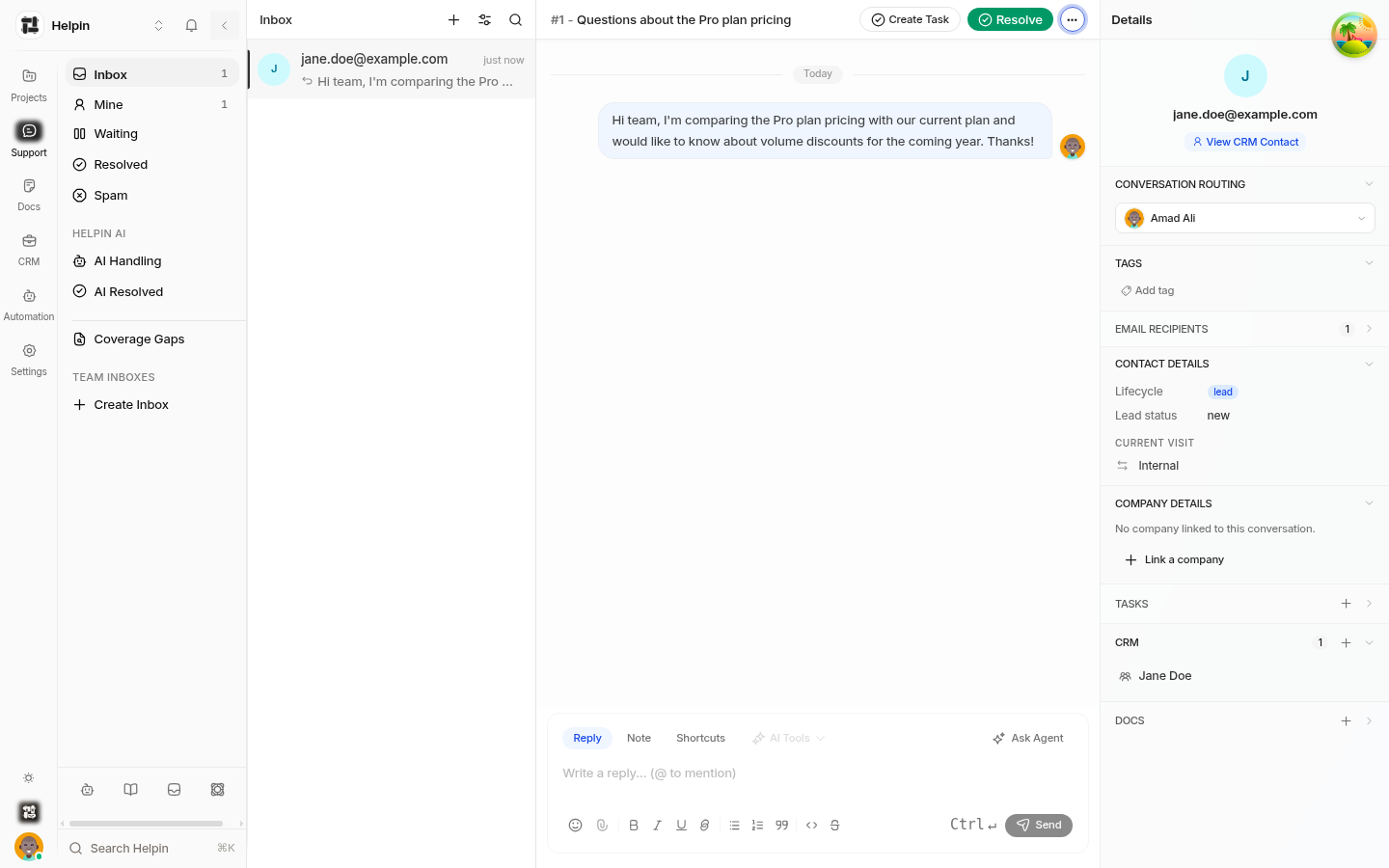
Sections
The panel is organized into collapsible sections:
Customer
The customer's name and email, with actions:
Edit customer name — rename how this customer appears in the inbox.
View CRM Contact — open the linked CRM contact record in the CRM module.
When the customer was identified (via the widget's identity capture or a CRM link), their avatar, name, and company appear here; anonymous visitors show their email or an anonymous label.
Conversation routing
Shows the conversation's current mailbox and lets you move it to another inbox you can access. Moving is recorded as a system event in the thread so the history stays transparent.
Tags
Add or remove workspace tags. Tags drive filtering and are a lightweight way to categorize conversations (for example bug, billing, resolved-by-docs).
Email recipients
For email-channel conversations, shows the To/Cc recipients. For chat conversations with a captured email, shows the email address replies will reach. Expand it to manage recipients when supported.
Contact details
Channel — how the conversation started: widget chat or email.
Seen — the customer's last-seen timestamp when known.
Company details
Link the conversation to a CRM company — useful for B2B support where the conversation belongs to an account. Linked companies appear on both the conversation and the company record.
Tasks
Create Task — turn the conversation (or a selection of messages) into a project task.
Link existing task — attach the conversation to an existing task; the conversation appears in the task's context.
Linked tasks keep support and engineering in sync: the task carries the customer context, and the conversation shows the work being done.
CRM
Shows linked CRM records (contact, company) with quick links to open them in CRM, plus Remove to unlink. For widget conversations where the visitor provided an email, the contact link is created automatically (see Identify visitors from the widget).
Docs
Link Helpin documents to the conversation for quick reference — a runbook, a policy page, or the article you used to answer.
Collapsing the panel
Click Collapse conversation details to hide the panel and widen the thread. The panel state is remembered per session, so you can keep it collapsed while focusing on replies.
Related pages
Was this article helpful?