Custom sender addresses & domains
Custom sender addresses let replies come from your own domain (support@yourcompany.com) instead of a Helpin-managed one. The setup is DNS: add your domain, publish DKIM / Return-Path / DMARC records, and verify.
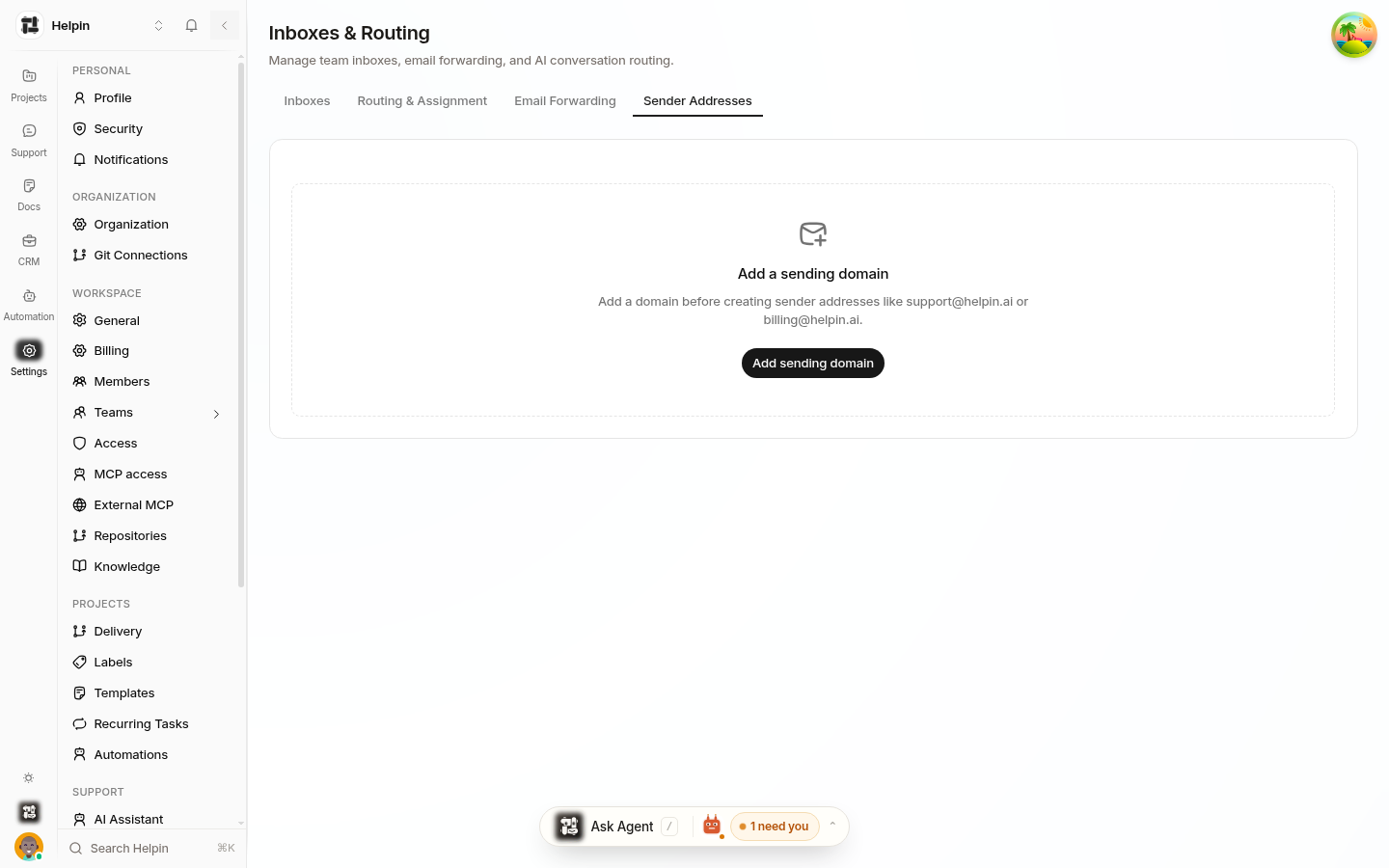
Sender addresses vs. sending domains
A sender address is one email identity (local part + domain), with a display name, that can be set as workspace or mailbox default.
A sending domain owns the DNS records that make all addresses on that domain deliverable. Adding
yourcompany.comas a domain lets you create addresses likesupport@yourcompany.comon it.
Adding a sending domain
In Settings → Inboxes & Routing → Sender Addresses, click Add sending domain.
Enter the domain (for example
yourcompany.com) and the from local part (for examplesupport).Helpin generates three DNS records:
Record | Type | Purpose |
|---|---|---|
DKIM | TXT | Cryptographically signs outbound mail so receivers verify it as your domain. |
Return-Path | CNAME | Bounce handling domain — bounces route back to Helpin for delivery status. |
DMARC | TXT | Policy telling receivers what to do when DKIM/SPF fail. Recommended if you don't already publish one. |
Publish the records at your DNS provider exactly as shown.
Wait for Helpin's DNS checks — the domain moves from Pending DNS to Verified.
DNS record notes
DKIM — publish the TXT record at the host shown in settings. If you later rotate keys, Helpin stages the new record as pending until DNS verifies, then swaps automatically — the old key keeps signing in the meantime.
Return-Path — the CNAME must point to the exact target provided; this is what captures bounces for per-message delivery status.
DMARC — if you already publish DMARC, leave yours in place; Helpin's suggestion is only for domains without one. Start permissive (
p=none) and tighten after you observe reports.
Verification states
Pending DNS — records not detected yet. Double-check hosts and values; propagation can take from minutes to 24+ hours depending on TTLs.
Verified — DKIM and Return-Path resolve; the domain can send.
Forwarding status is tracked separately: a domain can be verified for signing while its forwarding address still needs verification.
Setting defaults
After an address is verified, use Set default to make it the workspace default or assign it to specific team inboxes. For the default scopes and the order Helpin uses to choose which address a reply is sent from, see Default workspace & per-inbox sender addresses.
Deliverability checklist
Verify the domain before announcing the address.
Keep the Return-Path CNAME intact — removing it breaks bounce tracking.
Watch per-message delivery status in threads; repeated bounces usually mean the Return-Path or recipient validation.
If you use strict DMARC (
p=reject), ensure your provider doesn't also send marketing mail unsigned from the same domain.
Related pages
Was this article helpful?