Support email forwarding & routes
Forwarding routes are how email reaches Helpin. Each route defines an inbound address, an optional source binding, and the mailbox it feeds.
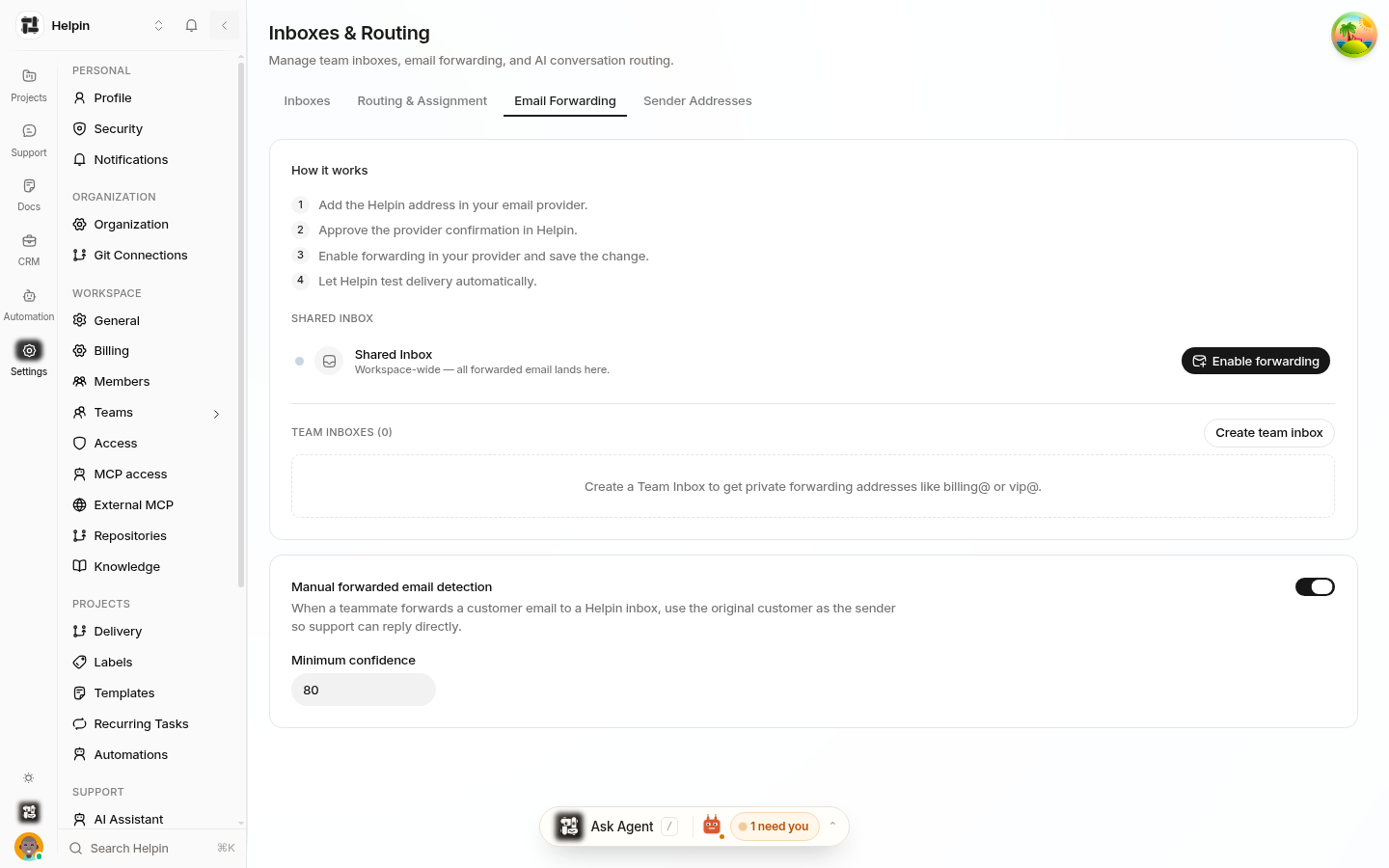
Creating a route
Go to Settings → Inboxes & Routing → Email Forwarding.
Click Enable forwarding (first route) or Create team inbox to combine route creation with a new inbox.
Copy the generated inbound address shown for the route.
At your mail provider, set your support address (for example
support@yourcompany.com) to forward all mail to the inbound address.Helpin sends a verification email to complete the loop; the route flips to Verified when it arrives.
Route properties
Each route has:
Inbound address — the Helpin address that receives forwarded mail.
Source address (optional) — the customer-facing address this route represents (for example
support@yourcompany.com). Setting it lets Helpin recognize which public address mail was sent to.Mailbox — the inbox conversations from this route land in. Unbound routes feed the shared inbox.
Active — pause a route without deleting it.
Status timestamps — last inbound mail, verification state, and last forwarding error, so a broken forwarding setup is visible immediately.
Multiple addresses
Create one route per public support address (support@, help@, billing@…), each bound to the mailbox that should own it. All routes share the same sender-address resolution for replies (workspace default or per-mailbox sender).
Troubleshooting forwarding
Symptom | Likely cause | Fix |
|---|---|---|
No conversations appear | Forwarding not actually enabled at your provider | Check the provider's forwarding rule; send a test email. |
Route shows unverified | Verification email not received | Confirm the forwarding rule forwards all mail, including from Helpin; resend verification. |
Emails arrive in the wrong inbox | Route bound to the wrong mailbox | Rebind the route or move conversations via routing rules. |
Threads fragment | Customer's replies go to a different address than the thread | Keep one address per route and reply from the matching sender. |
Keeping the loop healthy
Forward all headers (true forwarding), not inline copy-paste — metadata is what keeps threads intact.
Avoid auto-responders on the forwarded address; they can create loops.
If you migrate addresses, keep old routes active during the transition so in-flight threads keep arriving.
Manual forwards without a route
Occasionally a teammate forwards a customer email into Helpin manually. With manual forwarded email detection enabled (and confidence at or above the threshold), these are recognized and threaded as conversations with the original participants — no route needed. Detection is deliberately conservative: below the confidence threshold nothing is created.
Related pages
Was this article helpful?