Reports & analytics
Use Reports to review completed sprints and compare the work your team committed to with the work it actually finished. The current report is Sprint Closeouts.
Open a report
In the PM navigation, select Reports.
The report landing page shows the report cards available to your workspace.
Select Sprint Closeouts to open the sprint closeout report.
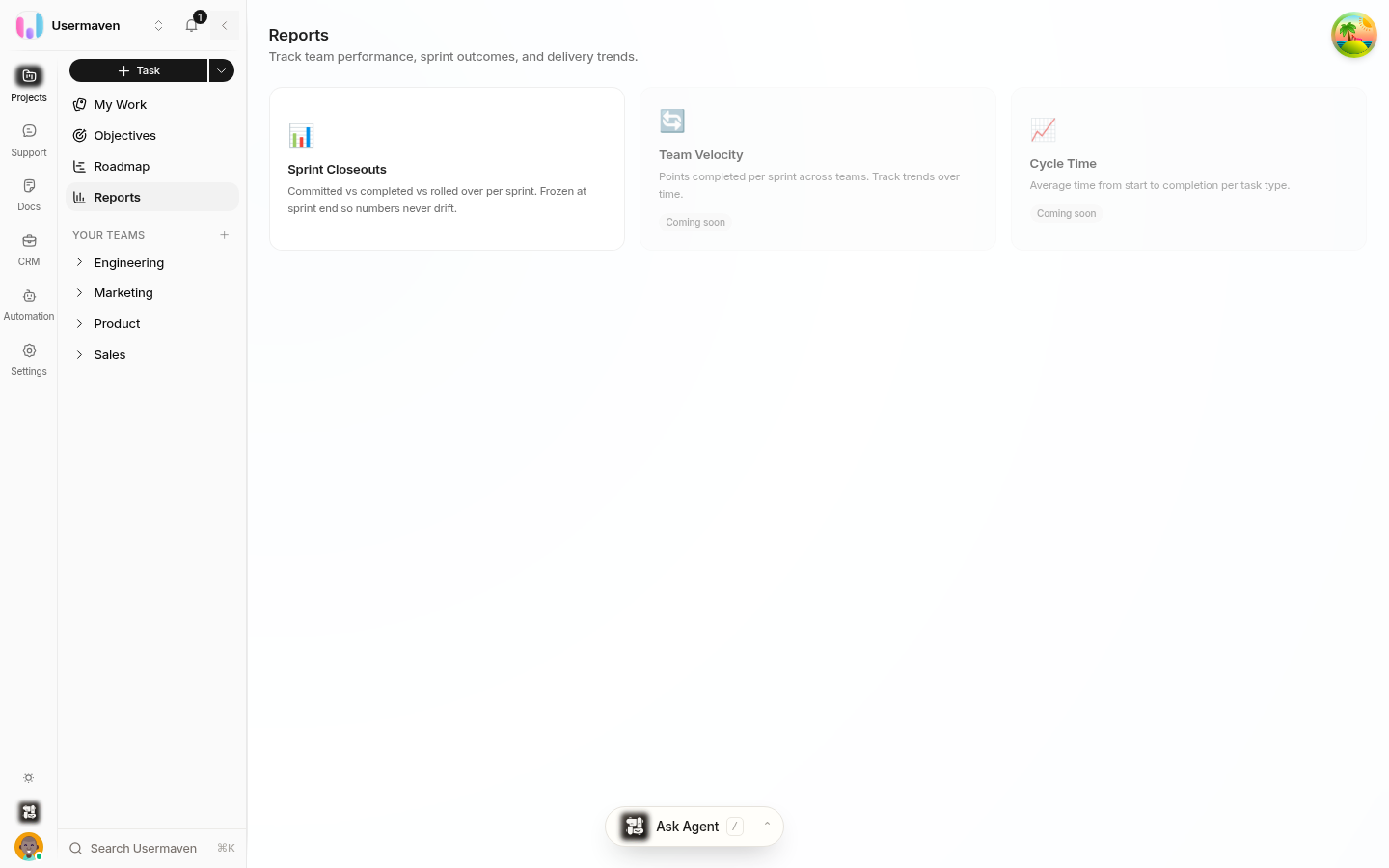
Sprint Closeouts is the report currently available. More reports are on the roadmap.
Read Sprint Closeouts
A sprint closeout is saved when the sprint ends, so its figures do not change later as tasks are edited or moved. This gives you a stable record you can compare across sprints.
Each closeout compares totals such as:
Total | What it means |
|---|---|
Committed work | What was planned for the sprint. |
Completed work | What was finished by the end of the sprint. |
Rolled over work | What was not finished and moved to a later sprint. |
Use these figures to spot patterns across recent sprints. Frequent rollover can mean the team is taking on more work than it can finish, or that tasks are being discovered mid-sprint. High commitment with low completion can point to unclear estimates or blocked dependencies.
Choose the scope and period
Use the Team picker to focus on one team (for example, All teams or Engineering), or leave it broad to review the whole workspace.
Use the Period control to choose how many sprints to include: Last 5 sprints, Last 10 sprints, All sprints, or All in range.
Use the Sprint picker to jump to a specific sprint when you need a single closeout.
Start with a short period when you want to review a recent change, such as a new workflow or team structure. Switch to All sprints when you need a longer trend.
Use reports in retrospectives
Open the report before a sprint retrospective and use it as shared evidence rather than a scorecard. Ask practical questions:
What caused rollover?
Was the original commitment clear?
Did blocked work or dependencies slow the sprint?
Related
Was this article helpful?