Agent run details on tasks
Use the agent-run area on a task to start AI-assisted work and follow the work the selected agent performs.
Run an agent on a task
Open the task, then open its Delivery view.
In Agent runs, choose an available agent.
Select Run agent.
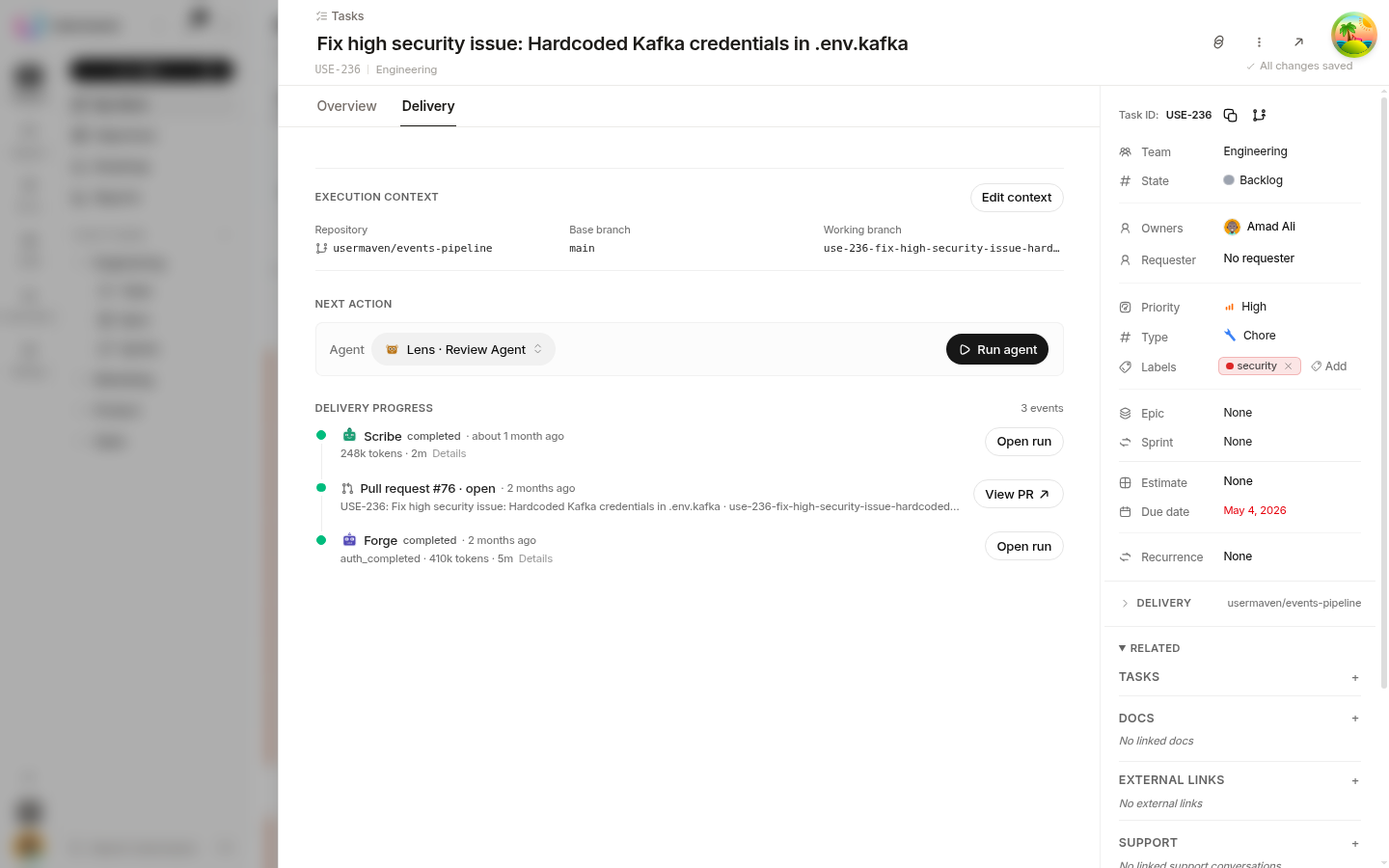
Helpin attaches the new run to the task, so progress and updates stay on the task instead of in a separate tool.
The panel can suggest an agent based on the task and recent runs. You can choose another eligible agent when one is available. If the latest run is still active, Helpin may point you to it so you do not start duplicate work.
Write task titles, descriptions, and acceptance criteria clearly before launching work. The agent works from the task context, so a specific title and a measurable acceptance criteria list improve the result. Update the task when the work changes scope.
Open run details
Select a run from the task's agent-run list to open its details.
Check the task's updates as well — agent-run activity also appears in the task timeline.
Run details show the agent's progress and the information it produces while working. Depending on the run, this can include its transcript, changed files, and the pull request when the agent opens one.
Work with an active or paused run
An active run is already working on the task. Check its details before starting anything else so you do not duplicate work.
If a run pauses, an editor can Continue it so the work picks up where it stopped. If a run does not finish, review the task requirements and delivery configuration, then use the available retry or continuation action where offered.
Keep delivery context accurate
For code or review work, the task's Delivery view can hold its repository and base branch. Team defaults may supply those values, but task-level settings can override them. Check the Delivery view before you launch if the work must land in a specific repository or against a specific base branch.
Related
Was this article helpful?